Choosing your first design tool can feel confusing when every creator recommends a different app. You want beautiful posts, presentations or app screens, but you do not want to waste weeks learning the wrong tool. If you are weighing figma vs canva beginners often face the same choice, and the right answer depends on what you want to create. This guide compares both tools in plain language so you can decide with confidence and start creating today.
Learn Canva first if you want fast, beautiful results with no design background, because its templates, drag and drop editor and ready made assets let you publish a polished post in minutes. Learn Figma first only if your goal is UI design, app design or a product design career, because Figma is the industry standard for interfaces and prototypes.
What Is Figma Best For?
Figma is best for interface design, app design, website design and product design work. It is the professional tool product teams use to design screens, build clickable prototypes and hand finished designs to developers. If you want to design a mobile app, a website layout or a complete product flow, Figma gives you the precise controls you need.
Figma works in your browser and on desktop, and it is famous for real time collaboration. Several people can work in the same file at the same time, leave comments on exact parts of a design and watch changes appear live. That shared workspace is one reason design teams rely on it every day.
Figma also has a powerful component system. You can turn a button, a card or a menu into a reusable component, then update it once and watch the change appear everywhere. This saves a huge amount of time on large projects and teaches you how professional design systems work. Beginners can find this power overwhelming at first, but it becomes a major advantage once you understand the basics.

What Is Canva Best For?
Canva is best for fast, polished graphics for social media, presentations, posters, invitations, resumes and marketing materials. It is built for people who want great looking results without learning complex design theory first. You pick a template, change the text and images, and you have a finished design in minutes.
Canva has a huge library of templates, photos, icons, fonts and graphics. That library is the main reason beginners love it. You do not start from a blank page, and you do not need to guess about layout, spacing or colour choices. The templates give you a strong starting point, and you can make each one your own with a few simple edits.
Canva is also very easy to share and publish. You can download a design as an image or PDF, share it straight to social media or present it from inside Canva. If you make content for Instagram, TikTok, Pinterest or a small business, Canva fits your daily work perfectly. Most beginners feel confident after a single session.
For a broader view of simple design tools, read this Canva vs Adobe Express comparison for beginners to see how Canva compares with another beginner friendly option. That comparison can help you confirm whether a template based tool is the right fit for your first projects.
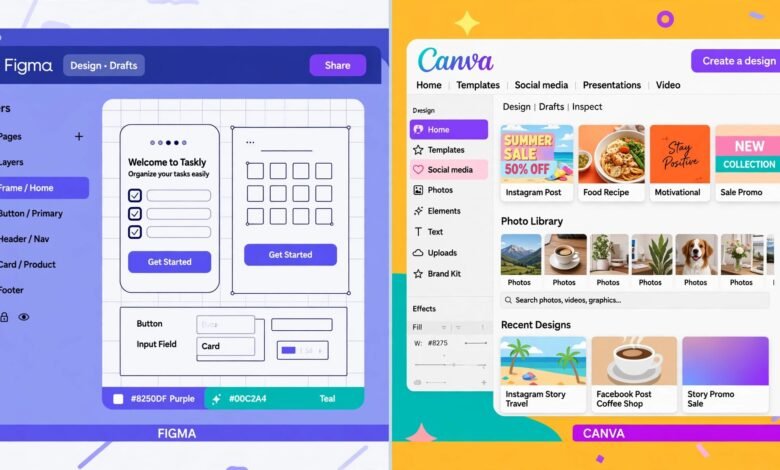
How Do Figma and Canva Compare Side by Side?
A direct comparison makes the choice much clearer, because each tool wins in different areas. Use the table below to see the strengths of each tool at a glance, then read the sections on price and ease of use before you decide.
| Feature | Figma | Canva |
|---|---|---|
| Best for | App screens, website layouts and product design | Social posts, presentations, posters and marketing graphics |
| Ease of use | Moderate learning curve with professional controls | Very easy with drag and drop editing |
| Templates | Community files and UI kits, fewer ready made layouts | Huge library of ready made templates for almost every format |
| Collaboration | Excellent real time editing and commenting in shared files | Good sharing and commenting, built for simple team work |
| Free plan | Starter plan is free with 3 design files and 3 FigJam boards | Free plan is free forever with 5 GB storage |
| Paid plan | Professional Full seat at 16 dollars a month on annual billing or 20 dollars a month billed monthly | Pro plan at 18 dollars a month billed monthly or 144 dollars a year |
| AI features | AI tools for design, text and layout help inside Figma | Strong AI tools for image generation, text and Magic Design |
| Best for beginners verdict | Best if you aim for a UI or product design job | Best for most beginners who want quick results |
The table shows a clear split. Canva wins for speed, templates and ease of use. Figma wins for interface design, prototypes and professional product work. Your goal matters more than any single feature, so choose the tool that matches the work you actually want to do.
How Do Figma and Canva Compare on Price?
Price matters for beginners, and both tools let you start for free. Canva Free is free forever with 5 GB storage, and it includes a large set of templates and design tools. That free plan is enough for many beginners to make social posts, presentations and simple marketing graphics without paying anything.
Canva Pro costs 18 dollars a month billed monthly or 144 dollars a year, which works out to 12 dollars a month equivalent. The Pro plan adds premium templates, brand tools, more storage and extra AI features. It is good value if you design every day for a business or a content channel, but most beginners should start on the free plan and upgrade only when they need a Pro feature.
Figma Starter is free with 3 design files and 3 FigJam boards. That limit sounds small, but it is enough to learn the tool, build a small portfolio and try real interface projects. You can delete old practice files to make room for new work while you learn.
Figma Professional Full seat costs 16 dollars a month on annual billing or 20 dollars a month billed monthly. A Dev seat costs 12 dollars a month on annual billing, and a Collab seat costs 3 dollars a month on annual billing. Those paid seats matter most for teams and professional designers, not for a beginner who is still learning. Prices can change, so check the official pricing page before you buy any paid plan.

Which Tool Is Easier to Learn?
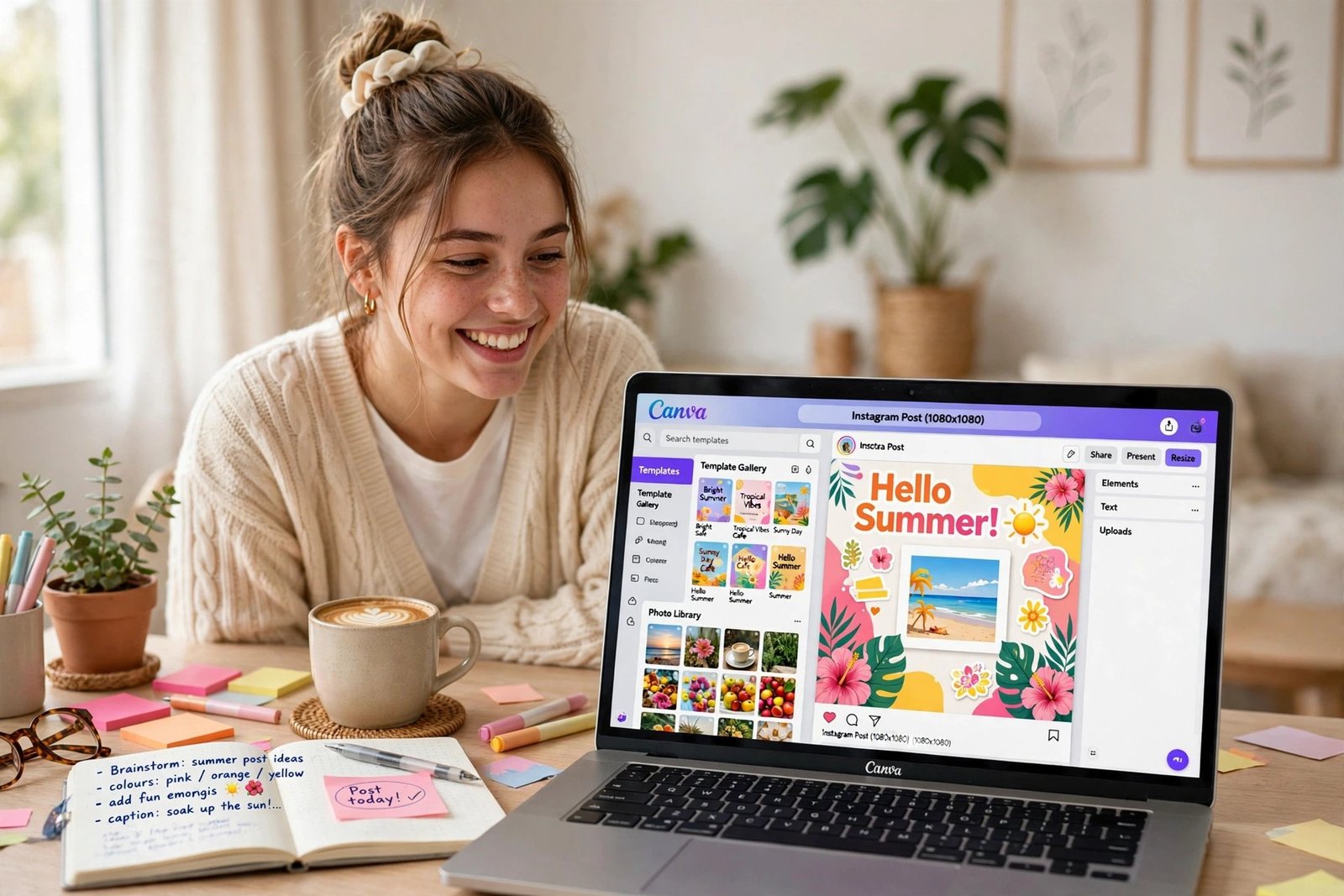
Canva is much easier to learn, and that is not a small advantage. You can open Canva, pick a template for an Instagram post, change the words and colours, and publish it in under ten minutes. The editor is visual, the menus are simple and every action feels obvious. Most beginners need no tutorial at all to make their first good design in Canva.
Figma takes more time to learn, but the effort pays off if you want a design career. You need to understand frames, layers, components, auto layout and prototyping. Those ideas sound technical at first, and the blank canvas can feel intimidating. After a few guided projects, the interface starts to make sense, and you gain a skill that can lead to paid work.
Think about your timeline. If you need a poster for tomorrow, a presentation for next week or daily social content, Canva gives you results right away. If you have a few weeks to learn and you want to design apps or websites, Figma is worth the slower start. Many designers learn Canva first for quick wins, then move to Figma when they are ready for interface work.
Which Tool Should You Pick for Your Goal?
Your goal should decide your first tool. Pick Canva first if you want social media posts, presentations, flyers, YouTube thumbnails or small business graphics. Pick Figma first if you want to design apps, websites or digital products, or if you plan to apply for UI design or product design jobs. Both paths are valid, and you can learn the other tool later.
If you plan to create logos as part of your design journey, explore this list of the best AI logo makers for small businesses for tools that pair well with Canva or Figma. A good logo tool can speed up brand projects while you focus on learning your main design app.
For most beginners, the smart path is Canva first, then Figma. Canva gives you fast results and confidence, while Figma gives you depth and career options. You do not have to choose one tool forever. Many working designers use Canva for quick marketing graphics and Figma for product work in the same week.
Follow these numbered steps to get started in Canva today.
- Create a free Canva account and pick a project you care about, such as an Instagram post or a simple presentation.
- Search the template library for that format and pick one template that matches your style.
- Change the text, colours and images to fit your message, and keep the layout clean and simple.
- Download your design, share it with a friend for feedback, and note what you would improve next time.
- Repeat the process with a new template each day for one week, then try a design from a blank page using what you learned.
- When you feel confident, watch a beginner Figma tutorial and rebuild one of your Canva designs in Figma to compare the two workflows.
Video content can also build your design skills, so check this roundup of the best AI video generators compared if you want to turn your designs into short videos or social clips. Video is a natural next step once you feel comfortable with static graphics.
Frequently Asked Questions
Is Figma or Canva better for beginners?
Canva is better for most beginners because it is faster, simpler and built around templates. You can make a polished design in minutes with no prior experience. Figma is better only if your main goal is UI design, app design or a product design career, where its professional tools and industry use matter more.
Can I use Figma and Canva together?
Yes, you can use both tools together, and many designers do exactly that. You might design a logo or a social graphic in Canva, then use it inside a Figma app mockup. You can also export images from one tool and import them into the other. Learning both gives you more options for different kinds of projects.
Is Figma free for beginners?
Yes, Figma is free for beginners through its Starter plan. The free plan includes 3 design files and 3 FigJam boards, which is enough to learn the basics and build small projects. You can upgrade to a paid seat later if you need unlimited files or team features for professional work.
Do I need design experience to use Canva?
No, you do not need design experience to use Canva. The templates, drag and drop editor and ready made assets guide you through each step. You learn by editing templates, and each project teaches you more about layout, fonts and colour. Most beginners create a design they are proud of on the very first day.
Conclusion
Figma and Canva are both excellent tools, but they serve different goals. Canva is the best first tool for most beginners who want fast, beautiful graphics for social media, presentations and small business marketing. Figma is the best first tool for beginners who want to design apps, websites and digital products, or build a career in UI design. Start with the tool that matches your goal, practise with real projects, and add the other tool when you are ready. Your first design does not need to be perfect. It only needs to be started, shared and improved with each new project.