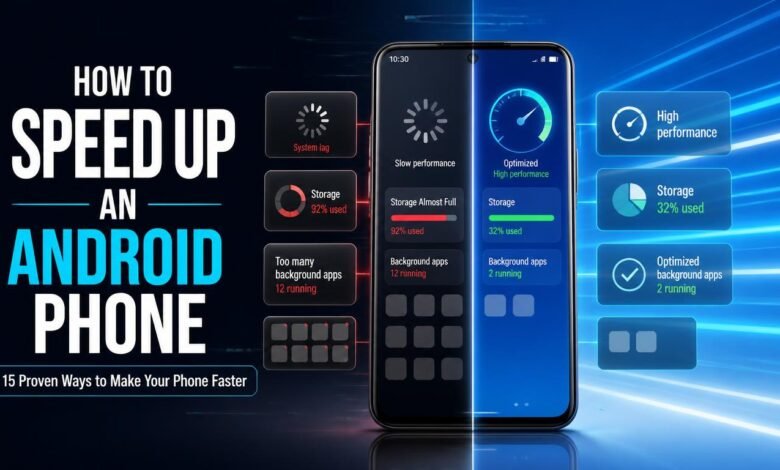
A slow Android phone can make even simple tasks frustrating. Apps take longer to open, websites lag, animations feel delayed, and the phone may freeze when you try to multitask. Fortunately, you do not always need a new phone to improve performance.
In many cases, you can speed up an Android phone by removing unnecessary files, managing apps, freeing storage, updating software, and changing a few system settings.
This guide explains practical and safe ways to make an Android phone faster without complicated technical knowledge.
Why Is My Android Phone So Slow?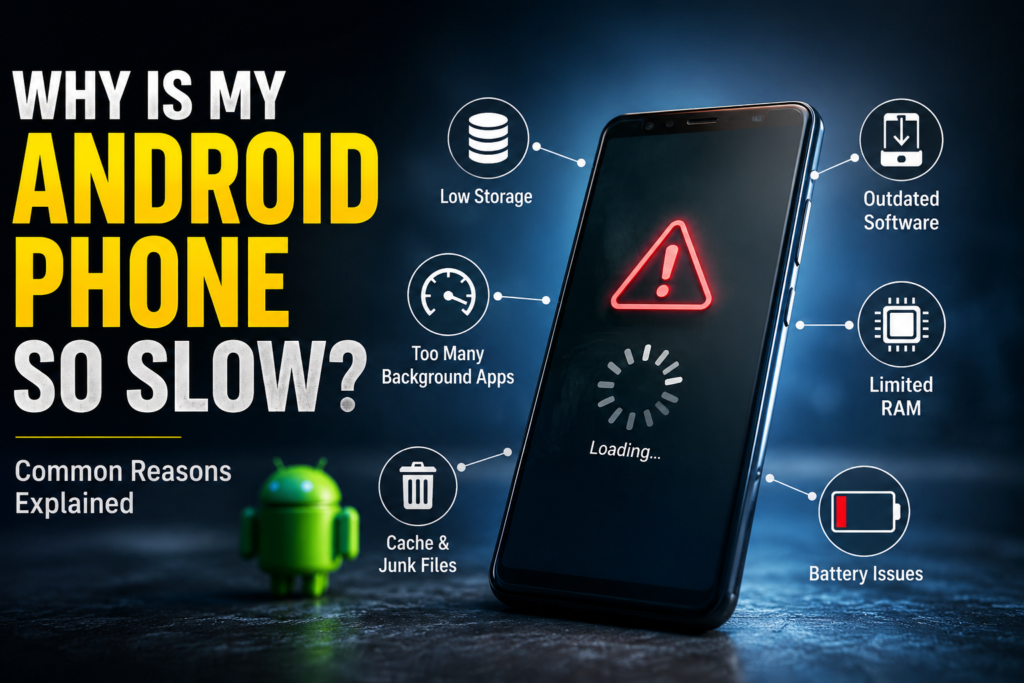
Before trying different solutions, it helps to understand why an Android phone becomes slow.
Common causes include:
- Low internal storage
- Too many background apps
- Unnecessary cached files
- Outdated Android software
- Too many apps installed
- Heavy apps running in the background
- Limited RAM
- Battery or performance-saving modes
- Old or poorly optimized software
- An aging phone with outdated hardware
If your phone has been slowing down gradually, freeing storage and reducing unnecessary background activity are usually good places to start.
1. Restart Your Android Phone
One of the simplest ways to improve Android performance is to restart the phone.
When Android runs for a long time, temporary processes and background tasks can accumulate. A restart closes these processes and gives the operating system a fresh start.
Try restarting your phone at least once every few days, especially if you notice unusual lag or apps becoming unresponsive.
Quick tip: If your phone has suddenly become slow, restart it before making major changes.
2. Free Up Internal Storage
Low storage is one of the most common reasons an Android phone can feel sluggish.
Check your storage by going to:
Settings → Storage
The exact menu can vary depending on the phone manufacturer.
Delete unnecessary:
- Videos
- Screenshots
- Duplicate photos
- Downloaded files
- Old documents
- Unused apps
- Large media files
Try to keep a reasonable amount of free internal storage instead of filling the phone completely.
SEO Tip: Free Up Android Storage
If you’re searching for how to free up space on Android, start with large files and apps you no longer use. This can improve both storage availability and overall usability.
3. Uninstall Apps You Don’t Use
Unused applications continue taking up storage, and some may run background services.
Go through your installed apps and remove anything you no longer need.
Pay particular attention to:
- Games you no longer play
- Duplicate utility apps
- Old shopping apps
- Unused editing applications
- Apps installed only for temporary purposes
Removing unnecessary apps is one of the easiest ways to make an Android phone faster.
4. Clear App Cache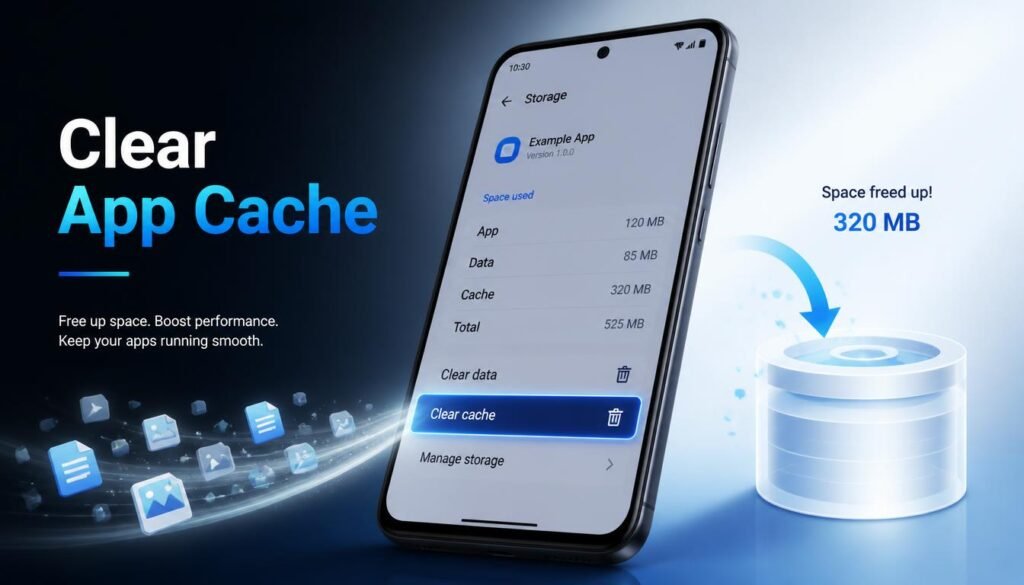
Android apps regularly create temporary files known as cache data. These files are designed to help apps load certain content faster and provide a smoother experience. However, over time, cached files can become unnecessarily large or may become corrupted, especially if an app has been updated several times or has experienced errors. When this happens, an individual app may start taking longer to open, freeze, crash, or behave unexpectedly. Clearing the cache can therefore be a useful troubleshooting step when a particular application is causing problems.
To clear an app’s cache, open Settings, go to Apps, select the application you want to manage, open its Storage section, and choose Clear Cache. The exact names and location of these options can vary depending on the Android manufacturer and software version. Samsung, Xiaomi, Infinix, Tecno, Oppo, Vivo, and other manufacturers may organize these settings differently, but the basic process is generally similar.
It is important to understand the difference between clearing cache and clearing app data. Clear Cache removes temporary files while generally keeping your account information, settings, and other app data intact. Clear Data, on the other hand, can reset the application and may remove locally stored information, accounts, settings, or other data. For this reason, you should use Clear Data only when you understand what information the application stores locally. If your goal is simply to remove temporary files, Clear Cache is the safer option.
You also do not need to clear the cache of every application repeatedly. Android is designed to manage temporary files automatically, and constantly clearing caches is not guaranteed to make the entire phone faster. Instead, use this method when a specific app is behaving unusually, consuming excessive storage, or experiencing performance problems.
5. Reduce Background Apps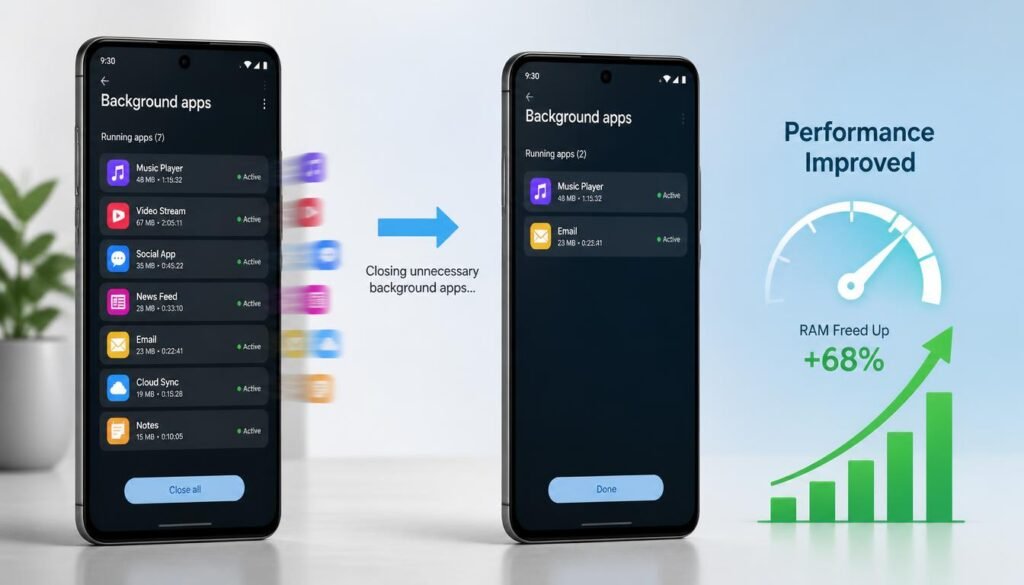
Many Android applications continue performing tasks in the background even when you are not actively using them. Background activity can include checking for new information, synchronizing content, processing notifications, or maintaining other services. While some background activity is necessary for important applications, having too many apps performing unnecessary tasks can consume RAM, battery, and other system resources.
If your Android phone has limited RAM, reducing unnecessary background activity can make everyday use feel more responsive. Review the applications installed on your phone and identify apps that do not need to remain active in the background. For applications that you rarely use, restricting background activity can reduce the amount of work your phone has to perform when you are doing other tasks.
You should be selective when making these changes because some applications rely on background activity for important functions. Messaging, security, email, and other essential applications may need background access to provide notifications or synchronization. Instead of restricting everything, focus on applications that are unnecessary or unusually resource-intensive.
Reducing unnecessary background activity can also help improve battery life. When fewer applications continuously perform tasks in the background, the phone has fewer processes to manage. This is particularly useful on older Android phones or devices with limited RAM, where excessive background activity can have a more noticeable effect on performance.
6. Remove Unnecessary Widgets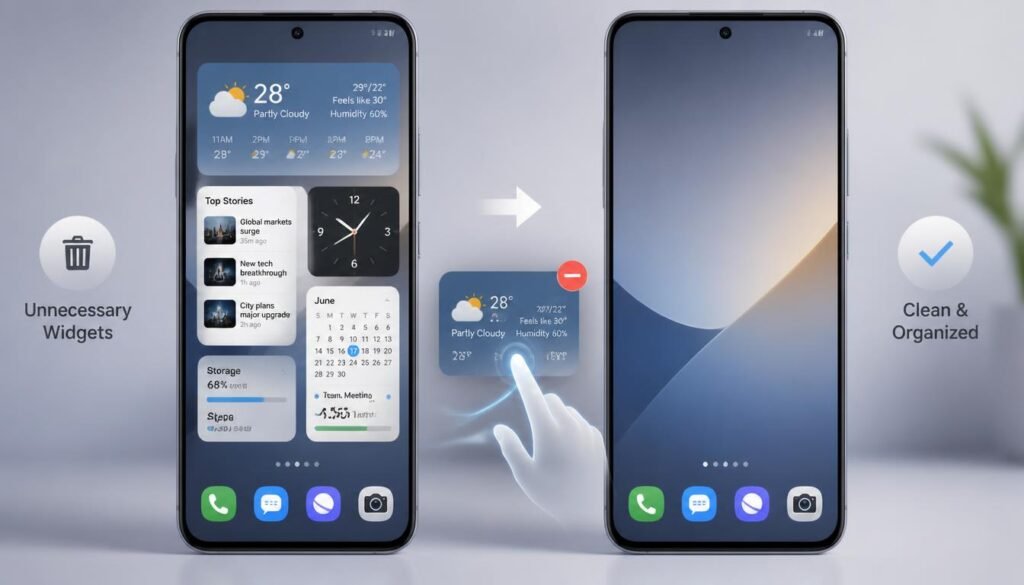
Widgets can make an Android home screen more convenient by displaying information without requiring you to open an application. Weather updates, news feeds, clocks, calendars, and other widgets can be useful, but some widgets continuously update information or perform background tasks. Having a large number of active widgets can therefore add unnecessary workload to your device.
Take a look at your home screen and remove widgets that you rarely use. Weather widgets, news feeds, social media widgets, large clock widgets, and other continuously updating widgets may not be necessary if you rarely interact with them. Removing them can help simplify the home screen and reduce unnecessary activity.
This does not mean that you should remove every widget from your phone. If a widget provides information that you regularly need, keeping it is perfectly reasonable. The goal is simply to avoid filling your home screen with unnecessary elements that provide little practical value.
A simpler home screen can also make your phone feel easier to use. With fewer constantly updating elements, there is less unnecessary activity taking place in the background. On older or lower-end Android phones, this small change can contribute to a more responsive overall experience.
7. Reduce Android Animations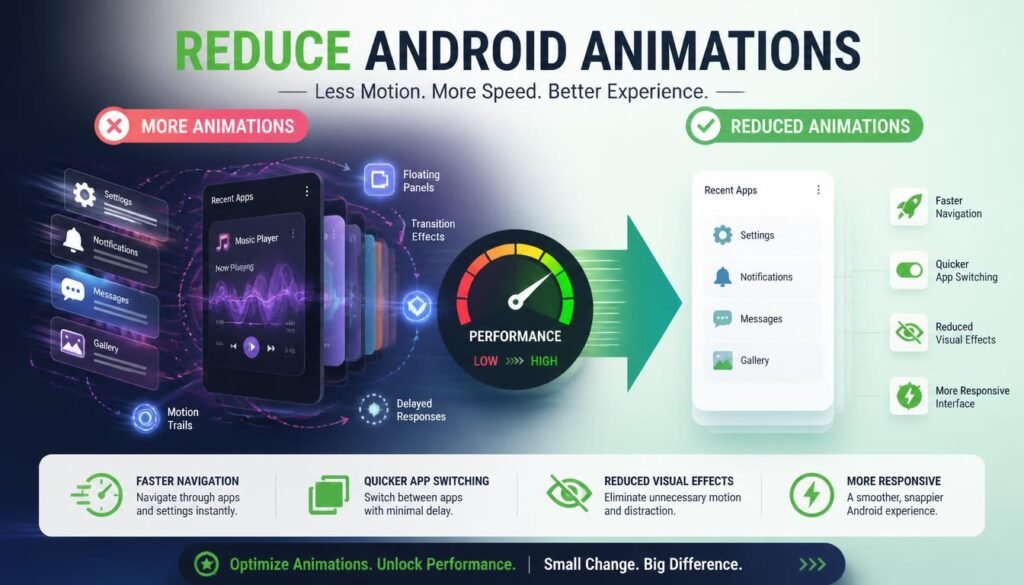
Android uses visual animations throughout the interface. You may notice animations when opening applications, switching between screens, displaying menus, or moving between different parts of the operating system. On newer phones, these animations are usually smooth, but older devices may struggle to display them quickly. Reducing the animation scale can make the interface feel faster because transitions take less time.
Animation settings can usually be accessed through Developer Options. If Developer Options are not already enabled, open Settings, go to About Phone, find Build Number, and tap it several times until Android enables Developer Options. The exact steps can vary between manufacturers and Android versions, so the menu may not look exactly the same on every device.
Once Developer Options are available, look for settings such as Window Animation Scale, Transition Animation Scale, and Animator Duration Scale. These options control different types of interface animations. You can reduce their values to make animations faster or disable them completely if you prefer a more immediate interface.
Reducing animations does not actually upgrade the phone’s processor or increase its RAM. Instead, it changes how quickly the interface displays transitions. As a result, the phone may feel more responsive even though its underlying hardware performance remains unchanged.
Developer Options contain many advanced settings, so it is important to avoid changing options that you do not understand. If you only want to improve the phone’s responsiveness, focus on the animation settings and leave other advanced options unchanged.
8. Keep Android Updated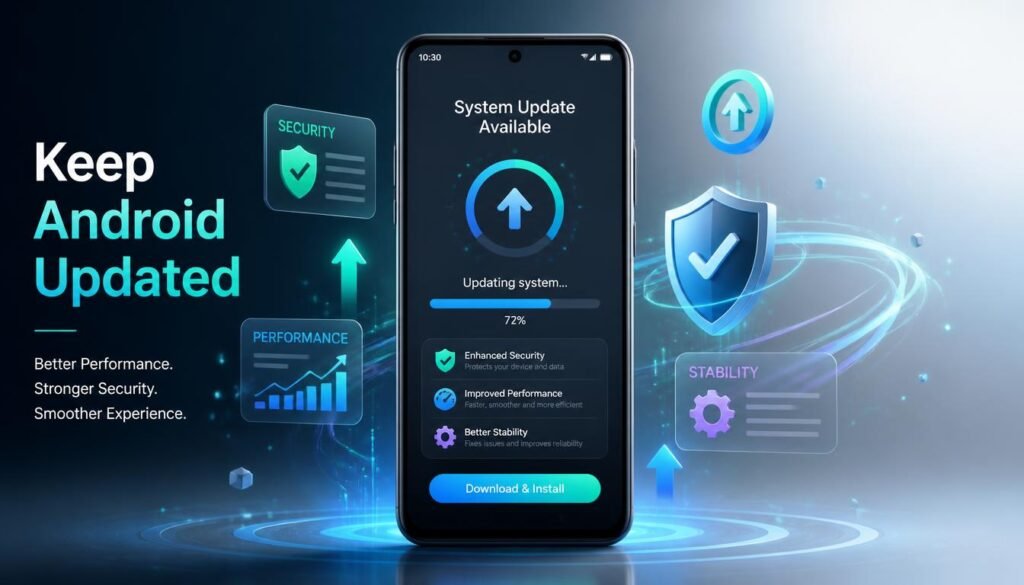
Keeping Android software updated can help maintain system stability and performance. Official software updates can include bug fixes, security improvements, compatibility changes, and performance optimizations. If your phone has an available official update, installing it can sometimes resolve software-related problems that are making the device feel slower or less stable.
You can normally check for updates by opening Settings and looking for Software Update or a similarly named option. The exact location depends on the manufacturer and Android version. Before installing a major update, it is sensible to back up important personal information so that your important files are protected if something unexpected happens during the update process.
Software updates are not guaranteed to make every older phone faster. Some major updates can place additional demands on older hardware, so the effect can vary depending on the device. Nevertheless, keeping the phone on supported official software is generally preferable to using outdated or modified system software.
Avoid installing unofficial firmware simply because you want better performance. Installing incorrect firmware can cause serious software problems and may prevent the phone from operating correctly. If an update is available through the phone’s official software update system, that is generally the safer approach.
9. Update Your Apps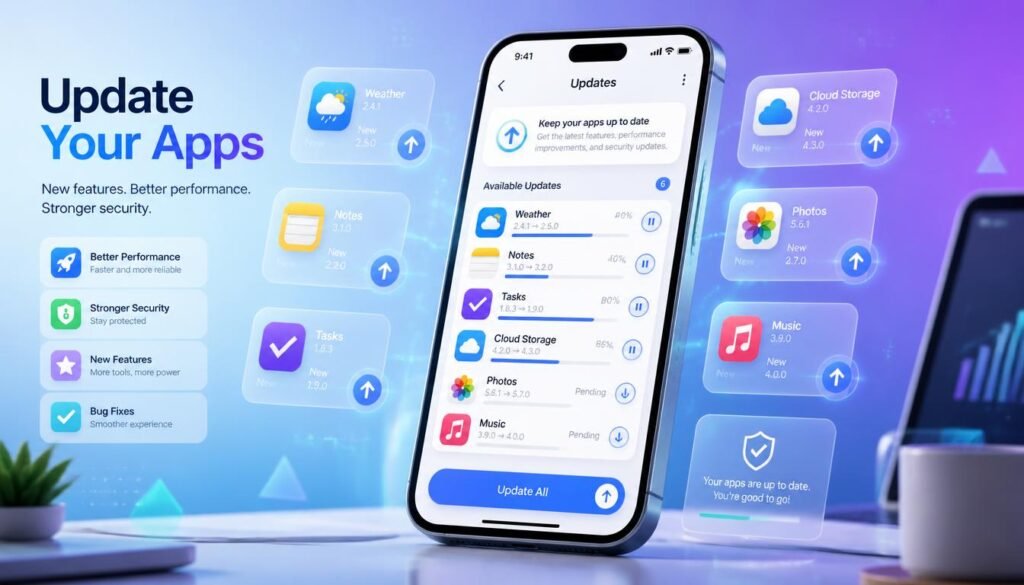
Android applications are regularly updated to fix bugs, improve compatibility, add features, and address performance problems. If several applications on your phone are outdated, they may not work as efficiently with your current Android version. An outdated application can also experience crashes, freezes, or other problems that make the phone appear slower.
Open the official app store on your device and check for available updates. Pay particular attention to applications that you use frequently, such as browsers, messaging applications, social media applications, productivity tools, and other services that run regularly.
Updating every application can take time and may require additional storage, so it can be useful to remove apps that you no longer use before installing large updates. This prevents unnecessary applications from consuming storage and ensures that the apps you actually need have enough room to remain updated.
If a particular application is consistently causing lag, crashes, or unusually high resource usage, check whether a newer version is available. An update may contain a fix for the problem. If the problem continues even after updating, consider whether the application is too demanding for your phone’s available hardware.
10. Delete Large and Unnecessary Downloads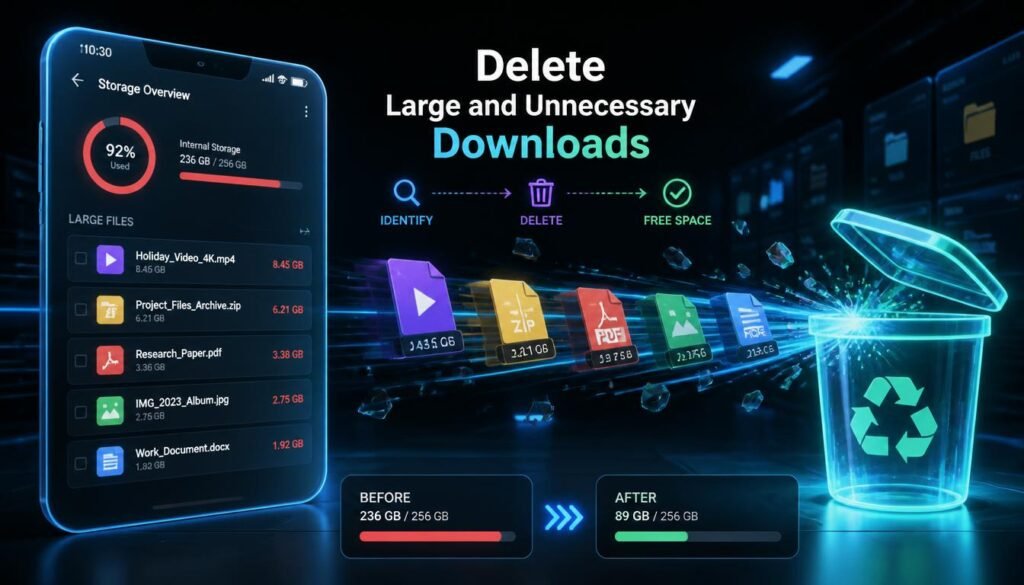
The Downloads folder can gradually become one of the largest sources of unnecessary files on an Android phone. Files downloaded from websites, messaging applications, browsers, or other services can remain on the device long after you have finished using them. Over time, these files can consume a significant amount of internal storage.
Open your phone’s file manager and review the Downloads folder carefully. Look for old APK files, large videos, ZIP archives, PDF documents, duplicate files, installation packages, and other downloads that you no longer need. Removing unnecessary files can create additional free storage without requiring you to uninstall useful applications.
Be careful before deleting anything. Some downloaded documents may still be important, so review files before removing them. If a file is valuable, consider moving it to another safe storage location before deleting the local copy.
This method is especially useful on phones with limited internal storage. When a device has very little free space remaining, everyday tasks such as installing updates, creating temporary files, and managing applications can become more difficult. Regularly reviewing large downloads is therefore a simple way to keep storage under control.
11. Avoid Unnecessary Cleaner and Booster Apps
Many Android users install third-party applications that claim to boost RAM, clean junk files, or dramatically increase phone performance. Although some applications can provide useful storage-management features, you generally do not need multiple cleaner or booster applications to maintain an Android phone.
Some cleaner applications continuously run in the background, display advertisements, send notifications, or consume system resources themselves. In some cases, installing several optimization tools can create additional workload instead of reducing it. A phone that already has limited RAM may be especially affected if several such applications remain active.
Instead of installing numerous optimization tools, make use of Android’s built-in storage, battery, and application-management features whenever possible. These system tools are already integrated into the operating system and can help you identify storage usage, battery consumption, and applications that may be using excessive resources.
A good approach is to solve the actual problem rather than installing a general-purpose booster. If storage is full, remove unnecessary files. If an application is causing problems, investigate that application. If battery usage is unusually high, check battery statistics. Targeted solutions are generally more useful than constantly running third-party cleaning processes.
12. Check Which Apps Consume the Most Battery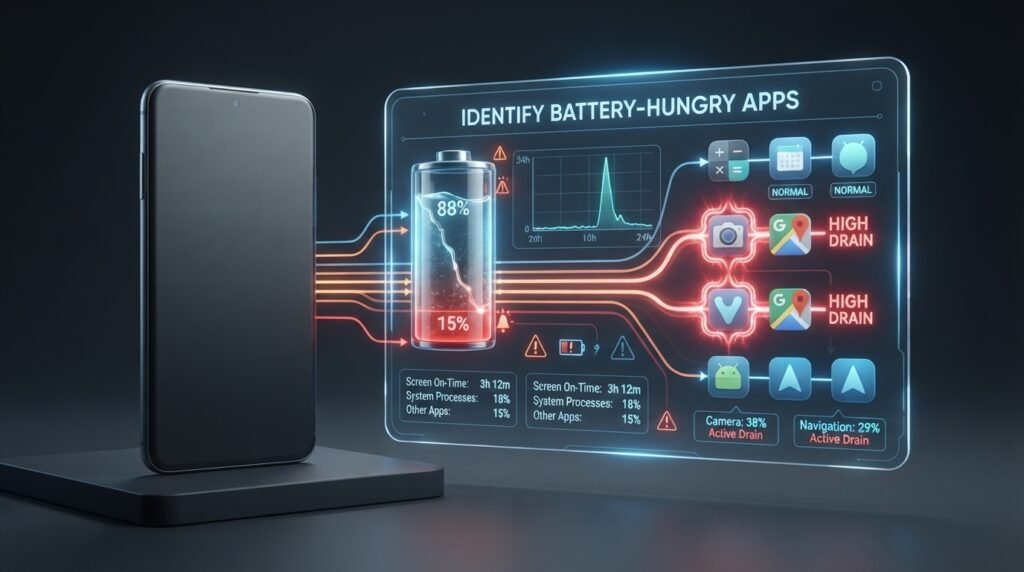
An application that consumes unusually high amounts of battery may also be performing significant work in the background. Although battery consumption does not automatically mean an app is slowing down the phone, unusually high usage can indicate that an application is active more often than expected.
You can review battery usage by opening Settings → Battery → Battery Usage. The exact location and wording can differ between Android manufacturers. Look for applications that are using an unusually large percentage of battery, especially if you rarely use those applications.
If you find an application that is consuming excessive battery and you do not need it regularly, consider uninstalling it or restricting its background activity. This can reduce unnecessary work performed by the phone and may improve both battery endurance and overall usability.
You should also consider whether the application is simply demanding by design. Video streaming, gaming, navigation, editing, and other intensive applications naturally consume more resources than lightweight applications. The important factor is whether the usage is unusually high compared with how frequently you actually use the application.
13. Scan for Suspicious Apps
A sudden change in phone performance can sometimes be connected to an application that was recently installed. If your phone becomes extremely slow, begins displaying unwanted advertisements, behaves strangely, or experiences problems shortly after installing an application, review the applications you recently added.
Start by checking your installed applications and looking for anything you do not recognize or no longer trust. If a problem appeared immediately after installing a particular application, removing that application may help determine whether it was responsible.
It is also important to be careful when downloading applications from unknown websites. Unofficial application files can carry additional risks, especially when they come from sources that you do not trust. Whenever an official source is available, it is safer to obtain applications from that source rather than downloading random installation packages from unfamiliar websites.
Do not assume that every slow phone has malware or a suspicious application. Performance problems have many possible causes, including limited storage, aging hardware, background activity, and outdated software. However, suspicious behavior after installing an unfamiliar application is a useful reason to investigate your installed apps.
14. Don’t Keep Too Many Apps Open
Modern versions of Android are designed to manage memory automatically. Because of this, you generally do not need to repeatedly force-close every application simply because it appears in the recent apps screen. Android can manage applications in memory and adjust resources according to what the system needs.
However, there are situations where closing and reopening an application can be useful. If an app becomes unresponsive, freezes, behaves incorrectly, or appears to consume excessive resources, closing it and opening it again may resolve the temporary problem.
Constantly clearing every recent application is not necessarily a performance improvement. In some situations, repeatedly reopening applications can require the system to load them from the beginning again. Therefore, instead of making a habit of force-closing everything, focus on applications that are actually causing problems.
If the entire phone becomes slow rather than just one application, restarting the device may be more useful. A restart can close stuck processes and refresh system resources, making it a practical troubleshooting step when the phone has been running for a long period.
15. Factory Reset as a Last Resort
If your Android phone remains extremely slow after trying the simpler solutions, a factory reset can provide a fresh software environment. A reset removes user-installed applications, settings, and other stored information and returns the device to a clean state. This can be useful when persistent software problems are difficult to identify or when the phone has accumulated years of unnecessary configuration and application data.
A factory reset should always be treated as a last resort rather than the first solution. Before performing the reset, create a complete backup of important information. Depending on how your phone is configured, a reset can erase applications, photos stored locally on the device, messages, accounts, settings, downloaded files, and other personal information.
After confirming that your important data has been backed up, follow the reset instructions provided by your phone’s official settings. The exact menu location can vary between manufacturers and Android versions. Make sure you understand what will be erased before confirming the process.
Once the reset is complete, avoid immediately reinstalling every application you previously had. Start with the applications you actually need and observe the phone’s performance. If the device becomes slow again after installing a particular application, that can provide a useful clue about what may be contributing to the problem.
A factory reset can remove many software-related issues, but it cannot repair aging hardware. If the phone remains slow even after a clean reset with only essential applications installed, the limitations may be related to the processor, RAM, internal storage speed, battery condition, or the overall age of the device.
How to Make an Old Android Phone Faster
If you have an older Android phone, focus on lightweight usage.
Try these steps:
- Keep sufficient free storage.
- Remove unused applications.
- Reduce unnecessary animations.
- Limit background activity.
- Avoid live wallpapers.
- Keep essential apps updated.
- Restart the phone periodically.
- Avoid installing unnecessary cleaner or booster apps.
- Keep fewer widgets on the home screen.
- Replace extremely heavy apps with lightweight alternatives where appropriate.
These changes cannot turn old hardware into a modern flagship, but they can make the phone feel considerably more responsive.
What If Your Android Phone Is Still Slow?
If you’ve tried all the methods above and your phone is still slow, the problem may be hardware-related.
Older phones have limitations involving:
- RAM
- Processor performance
- Internal storage speed
- Battery health
- Software support
In that situation, optimization can help, but there is a practical limit to how much performance you can gain through software changes.
If the phone is several years old and frequently freezes, crashes, overheats, or shuts down, it may be time to consider a newer device.