You shot your first video, and now it sits on your phone or laptop waiting for an edit. The good news is that you do not need to pay for software to turn it into something worth sharing. Some of the best video editors in the world cost nothing, and several of them were built with beginners in mind.
The catch is that free never means unlimited. Every free editor limits something different, such as export quality, watermarks, or the number of minutes you can process each month. This guide compares the 9 best free video editing apps for beginners in 2026, so you can see each limit before you invest an afternoon learning the tool.
The best free video editing app for beginners is DaVinci Resolve, because its free version exports up to Ultra HD at 60 frames per second with no watermark and no time limit. If you want something simpler, CapCut is fastest for short social videos, Clipchamp is best in a browser, and iMovie is easiest on a Mac or iPhone.
What Should Beginners Look for in a Free Video Editor?
A good beginner editor should let you finish a real video on your first day, not after a week of tutorials. Look for a clear timeline, simple trimming tools, and one click export settings that match where you plan to post. If the editor hides basic features behind menus or forces you to watch long guides before your first cut, it is not a beginner tool.
The free plan details matter more than the feature list. Check four things before you download anything: the highest export resolution, whether exports carry a watermark, any monthly minute or storage limit, and which features sit behind a paywall. A tool that exports clean 1080p video with no watermark beats a fancier tool that stamps its logo on every clip.
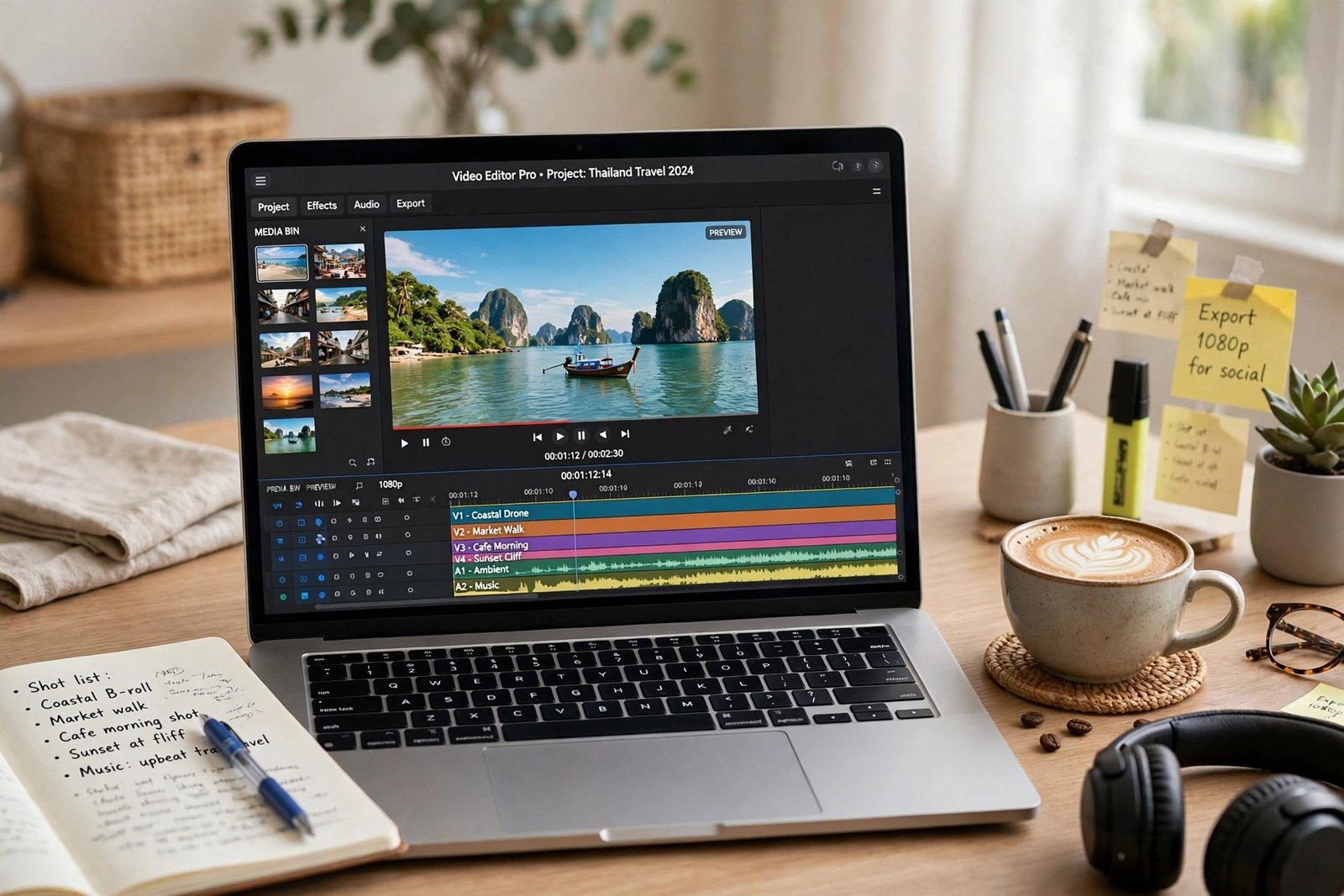
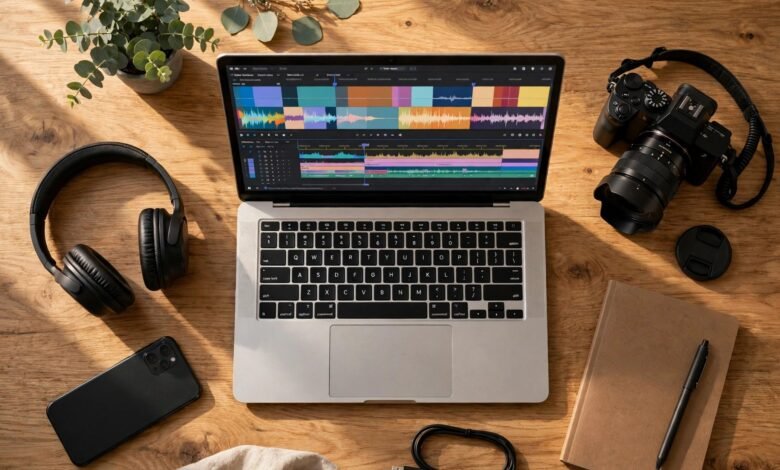
Your computer matters too. Heavy editors like DaVinci Resolve need a fairly modern processor and plenty of memory, while browser editors like Clipchamp run on almost any machine with an internet connection. Match the app to the hardware you already own, and you will spend your time editing instead of waiting for previews to load.
The 9 Best Free Video Editing Apps for Beginners in 2026
Here is the short version before the detail. Every app below is genuinely free to start, and the table shows the limit that matters most for each one.
| Editor | Free export | Watermark | Best for | The catch |
|---|---|---|---|---|
| DaVinci Resolve | Up to Ultra HD 4K at 60 fps | None | Serious editing you will not outgrow | Needs a strong computer |
| CapCut | Up to 1080p | Sometimes, on Pro templates | Fast social clips | 4K and clean export need Pro |
| Clipchamp | Up to 1080p | None | Quick edits in a browser | No 4K export on any plan |
| iMovie | Up to 4K | None | First edits on Apple devices | Apple only, few advanced tools |
| Shotcut | No cap listed | None | Older computers, simple projects | Plain interface, basic color tools |
| Kdenlive | No cap listed | None | Open source editing with a normal timeline | Basic color and effects |
| OpenShot | No cap listed | None | Very simple first edits | Not built for heavy 4K projects |
| Descript | Up to 720p | Paid plans only for clean export | Talking head videos and podcasts | 60 media minutes a month |
| Kapwing | Up to 720p, 4 minute videos | Yes, on the free plan | Fast browser edits with AI tools | 30 export minutes a month |
1. DaVinci Resolve
DaVinci Resolve is the most complete free video editor you can download, and it is the one pick that grows with you. Blackmagic Design gives away a free version that edits, color grades, adds visual effects, and mixes audio in one program. The free version handles almost all 8 bit video formats at up to 60 frames per second, in resolutions as high as Ultra HD 3840 by 2160, with no watermark and no time limit.
The newest major release is DaVinci Resolve 21, announced at the NAB show in April 2026. The learning curve is steeper than the other apps on this list, so start on the Cut page, which is the simplified workspace built for fast edits, and move to the Edit page only when you are ready. If you ever outgrow the free version, the Studio upgrade is a one time payment of 295 dollars, currently 236 dollars in a limited time promotion, and it adds AI tools like magic mask and text based editing.
2. CapCut
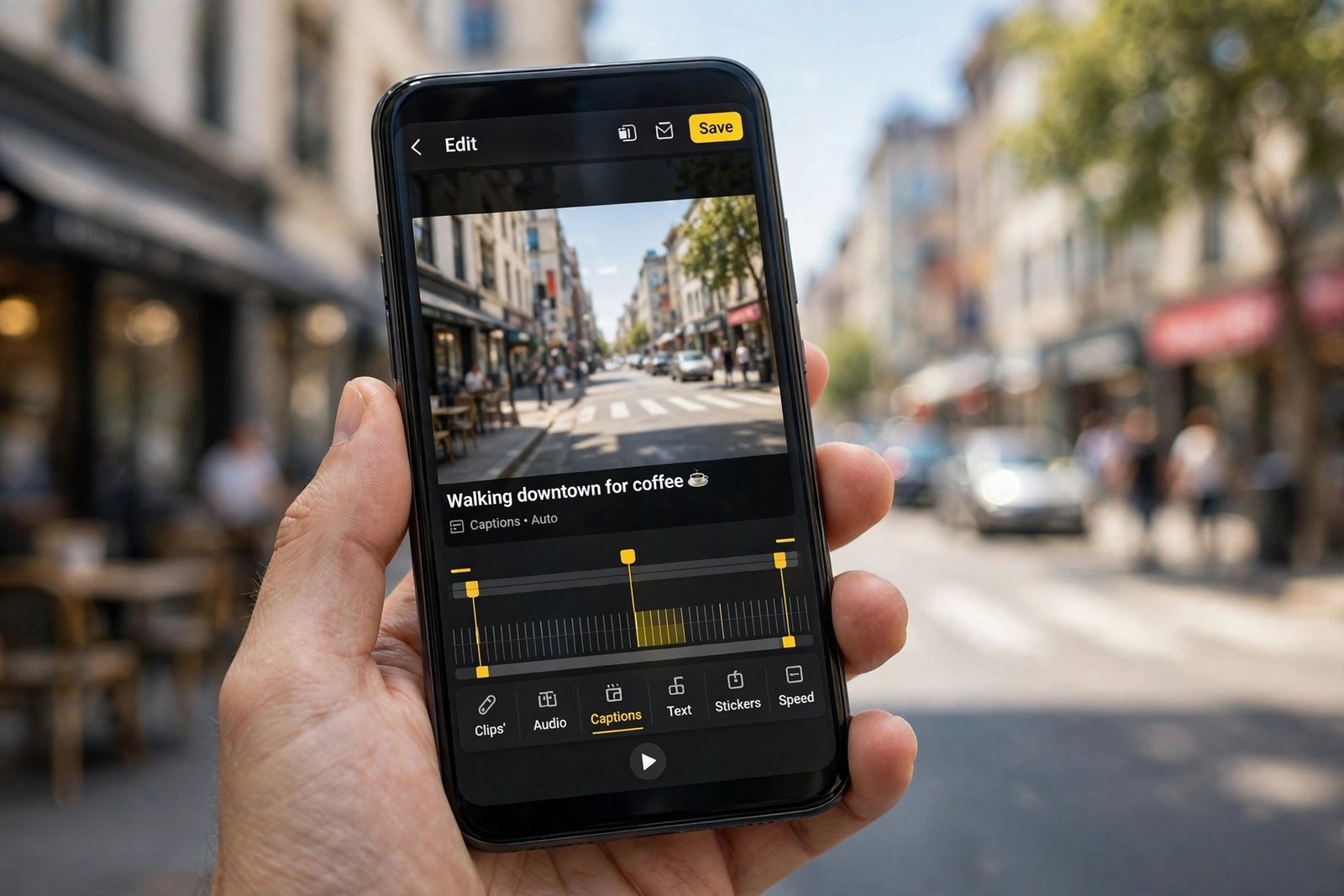
CapCut is the fastest way to turn phone footage into a finished short video. It is the editor behind countless TikTok and Reels clips, and it shines at captions, templates, transitions, and music. The free tier exports at 1080p, and most basic editing tools cost nothing.
Watch out for two traps on the free plan. First, some templates and effects are marked Pro, and using one can add a watermark or lock the export behind a paywall. Second, 4K export and fully clean exports sit in the paid plans, which cost around 10 to 20 dollars a month depending on the tier and region. Stick to free assets, check the export preview before you publish, and CapCut stays genuinely free.
If you want AI tools that generate video from a prompt instead of editing clips you shot yourself, our guide to the best AI video generators compares Veo, Runway and Kling side by side.
3. Clipchamp
Clipchamp is Microsoft’s browser based editor, and it comes preinstalled with Windows 11. You only need a personal Microsoft account to start, and the free plan exports watermark free video up to 1080p. That makes it the easiest pick for anyone on Windows who wants to edit without installing anything heavy.
The free plan is generous for a browser tool. It includes AI video and audio editing tools, trimming and cropping, a screen and voice recorder, animated titles, and free stock assets. The limits are clear: 4K export, premium stock, and the brand kit need a Microsoft 365 plan, and there is no 4K export on any Clipchamp plan at all. If 1080p is enough for your videos, you may never need to pay.
4. iMovie
iMovie is the default editor on every Mac, iPhone, and iPad, and it is the easiest first edit most Apple users will ever make. Open a clip, drag it onto the timeline, trim the ends, add a title, and export. It exports up to 4K with no watermark, and it costs nothing because Apple includes it with the device.
The trade is depth. iMovie has few advanced tools, no serious color grading, and no plugin system, so you will outgrow it if editing becomes a serious hobby. That is fine. Learn the basics here, finish a few real videos, and move to DaVinci Resolve when you want more control. For a first project on Apple hardware, nothing beats it for simplicity.
5. Shotcut
Shotcut is a free open source editor that runs on Windows, Mac, and Linux, and it is the best pick for older or weaker computers. It has no export cap listed and no watermark, and it handles 4K footage with proxy editing, which lets a modest machine preview heavy files smoothly.
The interface looks plain next to CapCut or iMovie, and the color tools are basic. But the timeline is a normal professional style timeline, the filters cover the essentials, and nothing in the program tries to sell you an upgrade. If your computer struggles with DaVinci Resolve and you want a desktop editor with no strings attached, Shotcut is the practical choice.
6. Kdenlive
Kdenlive is the other strong open source pick, and it suits beginners who want a normal timeline without paying for it. It runs on Windows, Mac, and Linux, it has no export cap and no watermark, and it supports multi track editing, keyframes, and a wide range of effects.
The color and effects tools are simpler than DaVinci Resolve, and the interface takes an hour to learn rather than ten minutes. In return you get an editor that never locks a feature behind a subscription and never expires. Kdenlive is a good middle ground between the simplicity of OpenShot and the power of Resolve.
7. OpenShot
OpenShot is the simplest desktop editor on this list, and that is exactly its strength. It is free and open source, it runs on Windows, Mac, and Linux, and it has no watermark or export cap. The timeline is drag and drop, the tools are clearly labeled, and a complete beginner can finish a first video in one sitting.
Do not expect it to handle heavy 4K projects or complex effects. OpenShot is built for simple cuts, titles, and transitions, and it slows down on demanding footage. Use it for family videos, school projects, and quick YouTube uploads, and move on when your projects get bigger.
8. Descript
Descript works differently from every other editor here. You edit video by editing the transcript, so deleting a sentence from the text deletes it from the video. That makes it brilliant for talking head videos, tutorials, and podcasts, where the words matter more than the visuals.
The free plan includes 60 media minutes a month, transcription in 25 languages, and unlimited projects, with local export at 720p. Clean export without a watermark is a paid feature, and paid plans start at 16 dollars a month billed yearly. If you record yourself talking to a camera, try Descript first, because no timeline editor matches it for cutting spoken video quickly.
9. Kapwing
Kapwing is a browser editor built for speed, with AI tools for captions, background removal, and smart cut detection. The free plan gives you 10 credits, unlimited exports with a watermark, videos up to 4 minutes long at 720p, 30 export minutes a month, and 5 GB of storage.
The watermark is the main catch, and removing it needs a paid plan from 16 dollars a month billed yearly. Kapwing is still useful for quick drafts, memes, and social clips where speed matters more than polish. Just check the watermark before you commit to a full project, so you are not surprised at export time.
Which Free Video Editing App Should You Pick First?
Your first pick depends on your device and your goal. If you edit on a Mac or iPhone and want the easiest start, pick iMovie. If you edit on Windows in a browser, pick Clipchamp. If you make short social videos on your phone, pick CapCut and avoid Pro assets. If you want one editor you will never outgrow, install DaVinci Resolve and learn the Cut page first.
If your computer is older or slow, pick Shotcut or Kdenlive, because both run well on modest hardware and cost nothing. If you mostly record yourself talking, pick Descript, because editing the transcript saves hours. If you want a quick browser edit with AI captions, try Kapwing, but remember the watermark on the free plan.
DaVinci Resolve needs a fairly strong computer, so check our guide to the best laptops for college students if your current machine struggles with large video files.
How to Edit Your First Video in an Afternoon
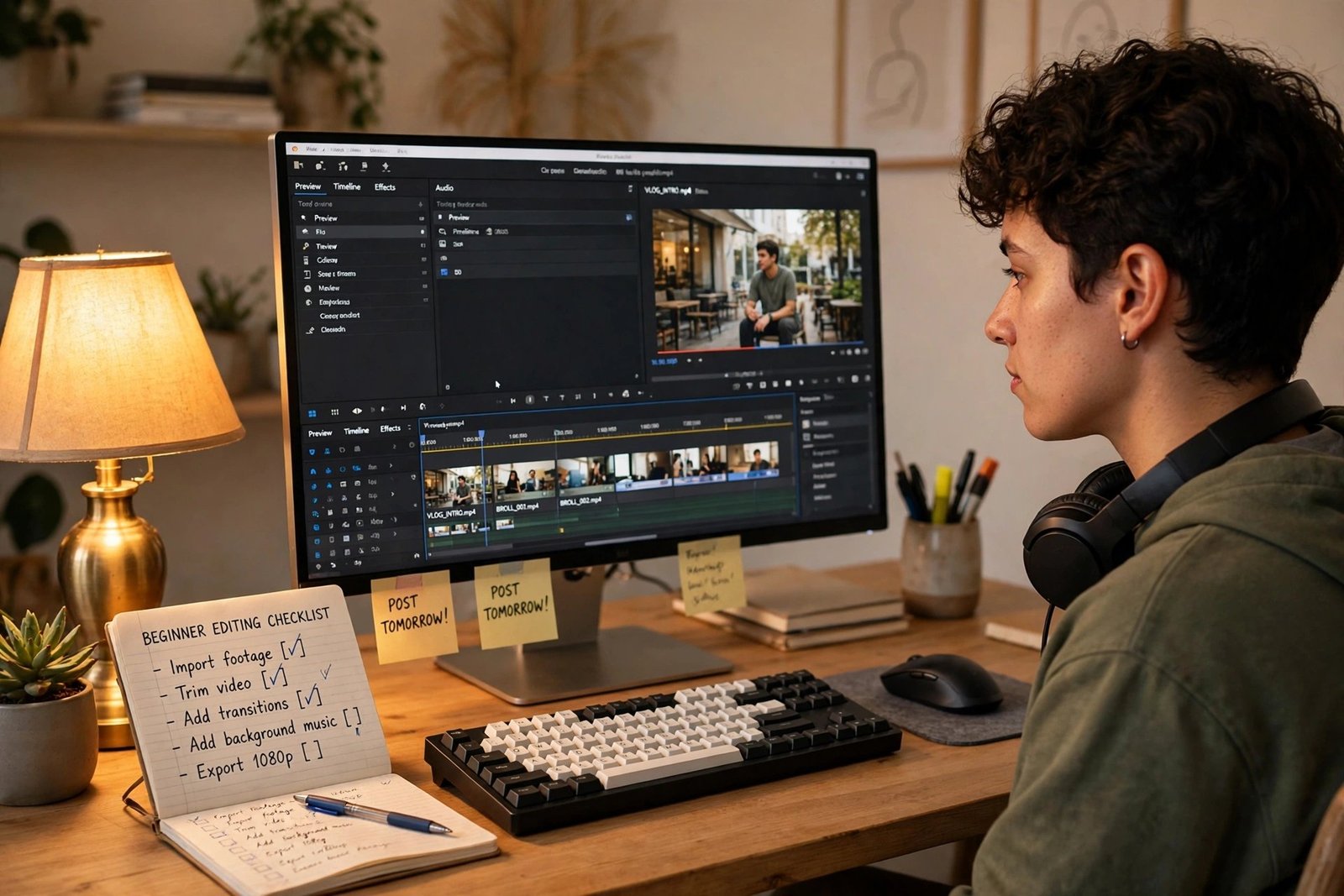
You can finish a real video today with any app on this list. Follow these steps and you will have something worth sharing before dinner.
- Import your clips and watch them once, then delete anything you know you will not use.
- Drag the keepers onto the timeline in the order you want, and trim the start and end of each clip.
- Cut out pauses, mistakes, and dead air, because tight pacing is what makes a video feel professional.
- Add a title at the start and simple transitions between scenes, but keep them subtle.
- Set the background music low enough that your voice stays clear, and check the audio on headphones.
- Add captions, because many people watch with the sound off.
- Export at 1080p, watch the finished file once from start to finish, and fix anything that looks wrong.
A strong thumbnail matters as much as the edit, and our roundup of the best free AI image generators shows eight tools you can use for thumbnails and channel art. If you also design your own thumbnails, our Canva vs Adobe Express comparison will help you pick the right design tool for the job.
Common Mistakes Beginners Make With Free Editors
The most common mistake is picking the most powerful editor first and quitting before the first video is done. Start simple, finish something, and upgrade later. A finished video in iMovie beats an unfinished project in DaVinci Resolve every time.
Another mistake is ignoring the free plan limits until export time. Always check the watermark, the export resolution, and any monthly minute limit before you start a project. A one hour edit that exports with a logo in the corner is an hour you have to redo.
Finally, do not overload a first video with effects. One clean cut, a readable title, and clear audio will look better than ten transitions and three filters fighting for attention. Let the content carry the video, and add flair only when you know why it helps.
Frequently Asked Questions About Free Video Editing Apps
What is the best completely free video editing app with no watermark?
DaVinci Resolve is the strongest fully free option with no watermark. Its free version exports up to Ultra HD at 60 frames per second with no time limit. Clipchamp, iMovie, Shotcut, Kdenlive, and OpenShot also export with no watermark on their free plans.
Can I edit 4K video for free?
Yes, you can edit and export 4K video for free with DaVinci Resolve and iMovie. Shotcut, Kdenlive, and OpenShot also handle 4K without a listed export cap, although they need a decent computer to preview it smoothly. CapCut and Clipchamp cap free exports at 1080p.
Which free video editor is easiest for a complete beginner?
iMovie is easiest on Apple devices, because it is preinstalled and the timeline is very simple. On Windows, Clipchamp is the easiest browser option, and CapCut is easiest on a phone for short social videos. All three let a beginner finish a first video in a single afternoon.
Do free video editors add a watermark?
Some do and some do not. DaVinci Resolve, Clipchamp, iMovie, Shotcut, Kdenlive, and OpenShot export without a watermark on their free plans. Kapwing adds a watermark on the free plan, CapCut adds one when you use Pro templates, and Descript needs a paid plan for clean export.
Can I use free video editors for YouTube and commercial work?
Yes, in most cases. The free versions of DaVinci Resolve, iMovie, Clipchamp, Shotcut, Kdenlive, and OpenShot allow YouTube uploads and commercial use. Always read the license terms of the specific app before using it for paid client work, and check the license of any stock music or templates you use inside it.
Start Editing Today
The best free video editing app is the one you actually finish a video with. Download one app from this list, import a clip you already have, and follow the seven steps above. Your first video will not be perfect, and that is fine, because every editor started exactly where you are now.
Pick DaVinci Resolve if you want room to grow, CapCut if you want speed, Clipchamp if you want the browser, or iMovie if you own Apple hardware. Then make something, publish it, and learn one new skill with every video after that. The tools are free, and the only cost is an afternoon of practice.