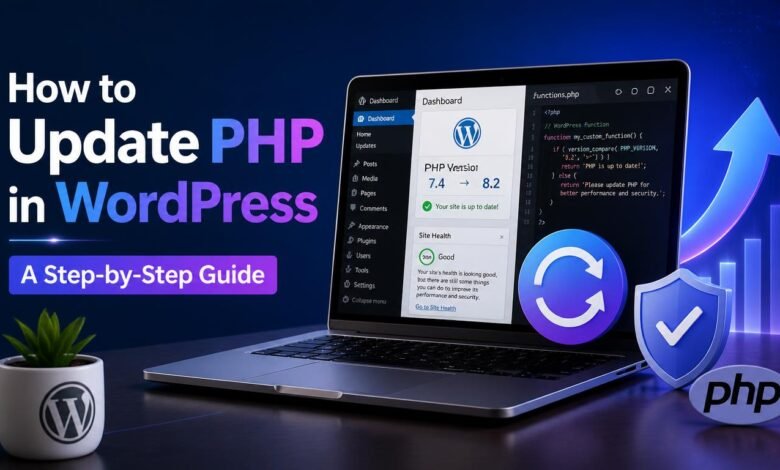
Updating PHP in WordPress is an important step toward maintaining a secure, reliable, and well-performing website. Many website owners focus on plugins and themes but overlook the server technology powering their websites. PHP plays a central role in WordPress, so keeping it updated helps maintain compatibility and security.
If you manage a blog, business website, or online store, learning this process can save time. In this guide from Its Tech Club, you will learn how to check your PHP version, prepare your website, and complete the update safely. You will also discover practical solutions for common problems that may appear afterwards.
What Is PHP in WordPress?
PHP is a server-side programming language that powers much of the WordPress platform. When visitors open your website, PHP helps generate the content their browsers display. It works alongside your database, WordPress core files, themes, and plugins to deliver website functionality.
Your hosting provider determines which PHP versions are available for your website. Running an outdated version can create security concerns and compatibility problems with newer software. Updating PHP helps your website benefit from improvements introduced through supported releases. <Cite refs={[“turn897729search1″,”turn897729search5”]}/>
However, updating PHP does not automatically fix every website performance problem. Your hosting resources, caching configuration, image sizes, and plugins also influence website speed.
Why Should You Update PHP in WordPress?
Keeping PHP updated offers several important benefits for website owners. Understanding these advantages helps you recognize why the update deserves attention.
Improved Website Security
Older PHP versions eventually stop receiving security updates from their maintainers. Continuing to use unsupported versions can expose your website to avoidable security risks. A supported PHP release helps protect the server environment against known vulnerabilities.
Better Website Performance
Newer PHP releases include performance improvements that can help WordPress process requests more efficiently. Your website may respond faster when its themes and plugins work well with the updated version. Actual improvements depend on your existing setup and overall server performance.
Better Software Compatibility
Modern WordPress themes and plugins may require newer PHP versions to function correctly. Updating PHP helps your website meet the requirements of actively maintained software. Nevertheless, you should check compatibility before switching to a newer release.
Ongoing Website Maintenance
Keeping PHP current is an essential part of responsible website maintenance. It complements regular WordPress updates, reliable backups, and security monitoring. These practices help reduce technical problems and support a healthier website over time.
How to Check Your Current PHP Version in WordPress
Before changing anything, identify the PHP version your website currently uses. WordPress provides a built-in tool that makes this process straightforward for beginners.
- Log in to your WordPress administration dashboard.
- Open Tools from the navigation menu.
- Select Site Health and open the Info tab.
- Expand the section labeled Server.
- Locate the PHP version displayed in the server information.
The displayed version tells you which PHP release currently powers your WordPress installation. You can also review Site Health recommendations to identify other maintenance concerns. <Cite refs={[“turn897729search4″,”turn897729search0”]}/>
Check the current WordPress requirements before deciding whether an update is necessary. WordPress currently recommends PHP 8.3 or newer, while the appropriate choice also depends on compatibility and hosting support. <Cite refs={[“turn897729search3″,”turn897729search8”]}/>
What to Do Before Updating PHP
Preparation is essential because an incompatible plugin or theme can cause website errors. Complete these checks before changing the PHP version on your hosting account.
Create a Complete Website Backup
Create a backup containing your WordPress files and database before proceeding. Your backup should include posts, pages, media, settings, plugins, themes, and relevant configuration files. Store a separate copy somewhere secure rather than relying exclusively on your hosting account.
Verify that your backup can be restored before making significant technical changes. A working backup provides a recovery option if the update causes unexpected problems.
Update WordPress, Themes, and Plugins
Open your WordPress dashboard and check for available software updates. Update WordPress core, themes, and plugins using their normal update procedures. Then review important pages and features to confirm everything works correctly.
Check PHP Compatibility
Review the minimum PHP requirements listed by your active themes and plugins. Contact their developers when documentation does not clearly explain compatibility with newer releases. Testing your website on a staging environment can reveal problems before visitors encounter them.
Confirm Hosting Support
Check which PHP versions your hosting provider supports for your particular website. Some providers manage PHP automatically, while others offer manual controls through their hosting dashboards. Contact support if you cannot identify the correct settings.
How to Update PHP in WordPress Step by Step
The exact process depends on your hosting provider and account configuration. Most managed hosting platforms provide a dashboard setting for changing the PHP version.
Step 1: Log In to Your Hosting Account
Open your hosting provider’s website and sign in to your account. Find the hosting package associated with the WordPress website you want to update. If you manage several websites, double-check the domain before changing any settings.
Step 2: Find the PHP Version Settings
Look for a menu named PHP Manager, PHP Configuration, or MultiPHP Manager. These labels vary between hosting providers, so your dashboard may use different terminology. If you cannot locate the setting, consult your provider’s official documentation.
Step 3: Choose a Compatible PHP Version
Review the available PHP releases and select a supported, stable version for your website. Confirm that your WordPress installation, active theme, and essential plugins support your choice. Avoid selecting an outdated release simply because it appears more familiar.
The recommended version may change as WordPress and PHP receive future updates. Check current official requirements and your hosting provider’s compatibility guidance before proceeding.
Step 4: Apply the PHP Update
Select your chosen PHP version and follow your hosting dashboard’s instructions. Depending on the provider, you might need to click Save, Apply, or Update. Some hosting platforms apply changes automatically after you confirm the selection.
Allow the server configuration to update before testing your website. Do not assume the change succeeded until you verify the active PHP version.
Step 5: Test Your WordPress Website
Return to your WordPress dashboard and repeat the PHP version check. Open your homepage, blog posts, contact forms, and other important website pages. Test login functionality, navigation menus, search features, and any interactive elements.
If you operate an online store, check product pages and checkout functionality carefully. Review your website’s error logs if something behaves unexpectedly after the update.
How to Update PHP in WordPress.com
WordPress.com handles hosting infrastructure differently from many independent WordPress hosting providers. Consequently, the available PHP controls depend on your plan and hosting environment.
Start by checking your account settings and the official WordPress.com support documentation. If manual PHP controls are unavailable, contact support to confirm how your website receives PHP updates. Avoid following instructions designed for cPanel when your hosting platform uses different controls.
Common WordPress PHP Update Problems and Fixes
Even careful preparation cannot guarantee that every website will work perfectly after upgrading PHP. Recognizing common symptoms helps you respond without making unnecessary changes.
White Screen or Critical Error
A blank page or critical error can indicate an incompatibility within your website. Check error logs and identify recently updated plugins or themes before changing anything else. If necessary, ask your hosting provider to help restore the previous working PHP version.
Plugin or Theme Compatibility Issues
Some plugins or themes may rely on code that behaves differently under newer PHP releases. Update the affected software or contact its developer for a compatible version. If the problem continues, consider a supported alternative after checking its functionality.
Internal Server Error
A server error can result from several configuration or application problems. Review your hosting error logs and contact support if the cause remains unclear. Restoring the previous PHP version may help while you investigate the underlying issue.
Website Features Stop Working
A PHP update might affect forms, widgets, search tools, or other interactive website features. Test each important feature and narrow down the problem before disabling multiple plugins. Make changes carefully and preserve your backup until the website works correctly.
How to Verify Your PHP Update Was Successful
After changing PHP, confirm that your website uses the intended version. Open Tools → Site Health → Info → Server and check the displayed PHP information.
Next, review the Site Health status for any new warnings or critical issues. Visit important pages, test interactive features, and check your website’s error logs when needed. If everything works correctly, keep your backup until you are confident the update remains stable.
Frequently Asked Questions
Is It Safe to Update PHP in WordPress?
Updating PHP is generally manageable when you prepare carefully and select a compatible version. However, incompatible themes or plugins can cause errors, making backups and testing important.
Can I Update PHP Without a Developer?
Most website owners can change PHP through a suitable hosting control panel. If your hosting settings are confusing or your website experiences errors, contact your provider.
Will Updating PHP Affect My WordPress Theme or Plugins?
Some older themes and plugins may not support newer PHP versions. Checking compatibility and testing important functionality helps reduce the likelihood of unexpected problems.
Does Updating PHP Make WordPress Faster?
Newer PHP versions can improve processing efficiency and may reduce server response times. Your actual results depend on hosting quality, software compatibility, caching, and website configuration.
What Should I Do If My Website Breaks?
Contact your hosting provider and investigate the error logs before attempting major changes. If necessary, restore the previous working PHP version and use your backup recovery plan.
Conclusion
Learning how to update PHP in WordPress helps you maintain better security, compatibility, and potential performance improvements. Start by checking your current version, creating a complete backup, and reviewing your themes and plugins. Then use your hosting dashboard or provider’s support instructions to complete the update carefully.
Afterward, test important website features and confirm the correct PHP version appears in Site Health. Following these steps helps you manage updates with greater confidence and fewer unnecessary risks.
At Its Tech Club , our goal is to make website maintenance easier through practical, beginner-friendly technology guides. Keep your WordPress installation maintained, review PHP requirements regularly, and address compatibility issues before they affect your visitors.