Your laptop was fast when it was new. Now it takes forever to boot, apps freeze for a few seconds before they open, and even a simple web page feels like hard work. The good news is that most slow laptops are not broken. They are just clogged with startup apps, full drives, old updates, and background tasks you never asked for.
This guide walks you through 12 easy fixes that work on Windows 11 and Mac laptops. Start at the top and work down. Most people notice a real difference after the first three fixes, and you do not need to buy anything to try them. If your laptop still struggles at the end, the last two fixes cover the hardware upgrades that make the biggest difference.
Quick answer: To speed up a slow laptop, restart it, turn off startup apps in Task Manager on Windows or Login Items on a Mac, free up storage with Storage Sense, install pending updates, and close heavy apps and browser tabs. If it still crawls, scan for malware and check whether an SSD or more RAM would help.
Why Is My Laptop So Slow?
A laptop slows down for a few common reasons. Too many apps launch at startup, the drive gets nearly full, the system runs old software with known bugs, or the machine overheats and slows itself down to stay cool. On older laptops, a spinning hard drive or too little memory can also be the bottleneck.
Age matters, but it is rarely the whole story. A five year old laptop with a clean system and an SSD can feel faster than a two year old laptop stuffed with extra software and a full drive. That is why the fixes below start with free software cleanup and only move to hardware at the end.
How Do I Find What Is Slowing My Laptop Down?
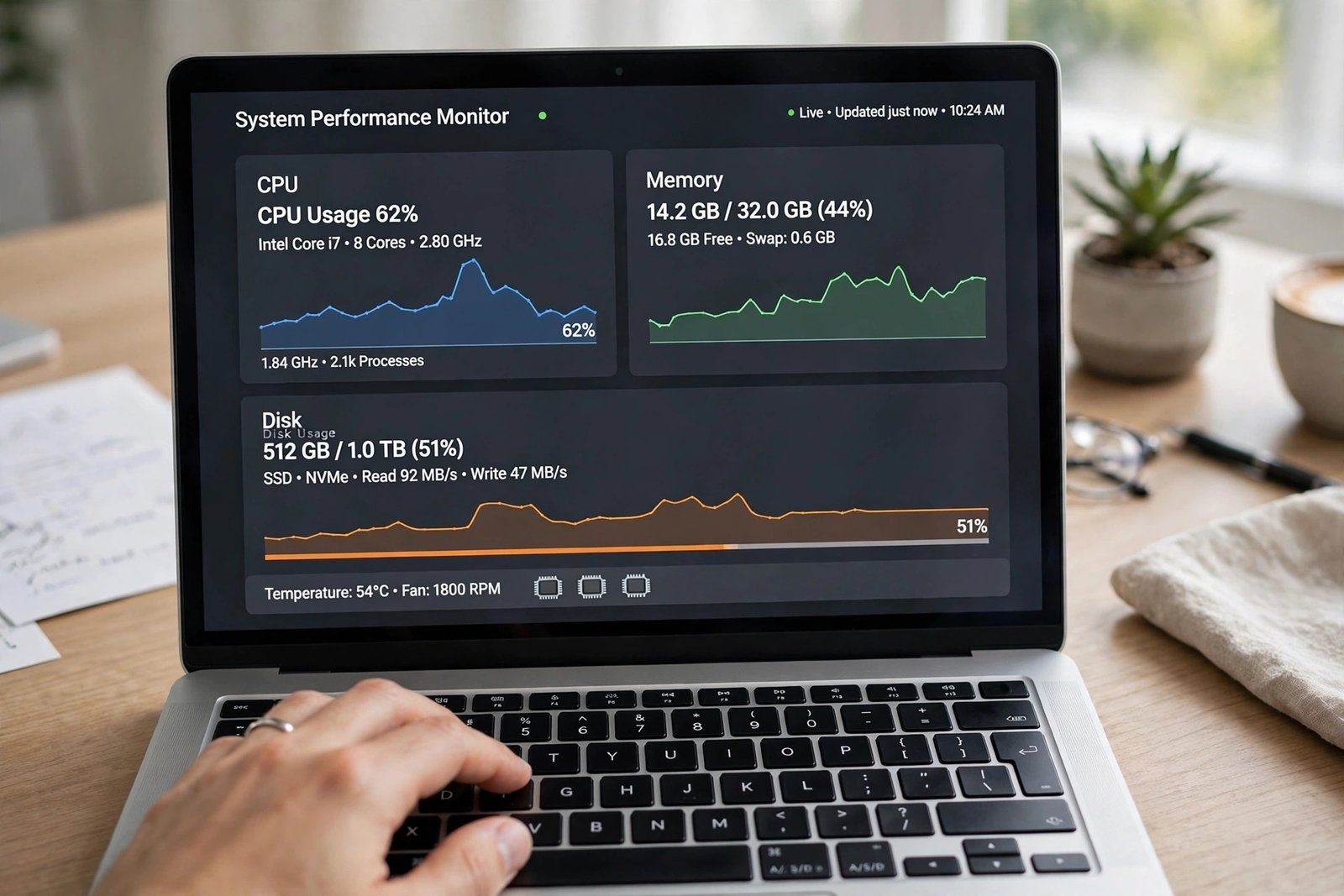
Before you change anything, spend two minutes finding the culprit. On Windows, press Ctrl Shift Esc to open Task Manager, then click the Processes tab and sort by CPU, Memory, or Disk. The app at the top of the list is using the most resources right now. On a Mac, open Activity Monitor from the Utilities folder and sort the same way.
If one app is eating most of the processor or memory while you do nothing, that app is your problem. If memory sits near 100 percent all day, you probably need more RAM. If the disk is at 100 percent during simple tasks, your drive is the bottleneck. Write down what you find, then match it to the fixes below.
Fix 1: Restart Your Laptop (Really)
When did you last restart your laptop? If you only ever close the lid, your machine may have been running for weeks. A restart clears memory, ends stuck processes, and lets pending updates finish. It is the simplest fix on this list and the one people skip most often.
On Windows, click Start, then Power, then Restart. Do not choose Shut Down and power back on, because fast startup can skip a full reset. On a Mac, click the Apple menu and choose Restart. If your laptop suddenly feels snappy again, you have your answer. Make restarting a weekly habit.
Fix 2: Install Pending Updates
Outdated software is a classic cause of slowness. Windows and macOS updates fix bugs, patch security holes, and often improve performance. Drivers matter too, especially graphics and storage drivers.
On Windows, go to Settings, then Windows Update, then Check for updates. Install everything it offers, then check Optional updates for driver fixes. On a Mac, open System Settings, then General, then Software Update. Restart after the install finishes so the changes take effect.
Fix 3: Turn Off Startup Apps
Many apps set themselves to launch every time you sign in. Chat apps, music players, cloud storage, game launchers, and updaters all pile up in the background before you even open anything. Each one takes memory and processor time.
On Windows 11, press Ctrl Shift Esc to open Task Manager, select Startup apps from the left menu, and look at the Startup impact column. Right click any app you do not need right away and choose Disable. The app still works when you open it by hand. On a Mac, go to System Settings, then General, then Login Items, and remove anything you do not need at login. Keep your security software enabled.
Fix 4: Close Browser Tabs and Heavy Apps
Your browser may be the hungriest app on your laptop. Every open tab holds memory, and tabs with video, ads, or web apps use even more. Twenty tabs can quietly use several gigabytes of memory.
Close tabs you are not using right now and bookmark the rest for later. If you edit video, run design software, or play games, close those apps when you finish instead of leaving them open all day. Video editing apps are some of the heaviest programs most people run, so if you edit on your laptop, check our guide to the best free video editing apps for beginners in 2026 and pick one that fits your machine.
Fix 5: Free Up Disk Space With Storage Sense
Microsoft warns that low disk space can reduce performance and make updates hard to install. A drive that is nearly full has little room to work, so reads and writes slow down. Aim to keep at least 15 to 20 percent of your drive free.
On Windows 11, Storage Sense does the cleanup for you. Go to Settings, then System, then Storage, and turn on Storage Sense. It removes temporary files and Recycle Bin items you no longer need. Then open Temporary files on the same page, tick what you want to remove, and select Remove files. On a Mac, open System Settings, then General, then Storage, review the recommendations, and empty the Trash.
Fix 6: Uninstall Apps You Never Use
Old apps do more than take up space. Many run background services, check for updates, and add startup entries. A laptop that came with trial software and manufacturer extras can carry dozens of programs you never open.
On Windows, go to Settings, then Apps, then Installed apps. Sort by size or install date and uninstall anything you do not recognize or no longer use. On a Mac, open the Applications folder and drag unused apps to the Trash. If you are unsure about an app, search its name first. Never remove drivers or security software.
Fix 7: Turn Off Visual Effects
Windows 11 looks great, but transparency, animations, and shadows cost processor and graphics power. On an older laptop, those effects can make every window feel sluggish.
Search for Adjust the appearance and performance of Windows and open it. On the Visual Effects tab, choose Adjust for best performance, then click OK. You can also turn on individual effects you like. The desktop will look plainer, but windows will open and move faster. On a Mac, go to System Settings, then Accessibility, then Display, and turn on Reduce motion and Reduce transparency.
Fix 8: Switch to Best Performance Power Mode
Windows balances speed and battery life by default. That is sensible on the road, but it caps your processor when you need full speed. Switching power modes is a one click change.
Go to Settings, then System, then Power and battery. In the Power mode menu, choose Best performance. Microsoft notes that this setting uses more power, drains a laptop battery faster, and may make the device run warmer, so switch back to Balanced when you unplug. On a Mac, plug in the charger and check that Low Power Mode is off in System Settings under Battery.
Fix 9: Run a Malware Scan
Malware and unwanted software can chew through your processor in the background. If your laptop suddenly got slow for no clear reason, a scan is worth ten minutes.
On Windows, open Windows Security, choose Virus and threat protection, and click Quick scan. If it finds nothing and the problem remains, run a full scan overnight. On a Mac, make sure your system is up to date, since macOS includes built in malware protection, and only install apps from sources you trust.
Fix 10: Keep Your Laptop Cool and Clean
Laptops slow themselves down when they get hot. Dust in the vents and fans traps heat, so the processor slows its speed to protect itself. A laptop used on a bed or sofa can overheat for the same reason, because soft surfaces block the air vents.
Use your laptop on a hard, flat surface so air can flow underneath. Once a month, blow dust out of the vents with a can of compressed air while the laptop is off. Hold the fan still with a finger so it does not spin too fast. If the laptop still runs hot and loud after cleaning, the thermal paste inside may be old, and a repair shop can replace it cheaply.
Fix 11: Upgrade to an SSD
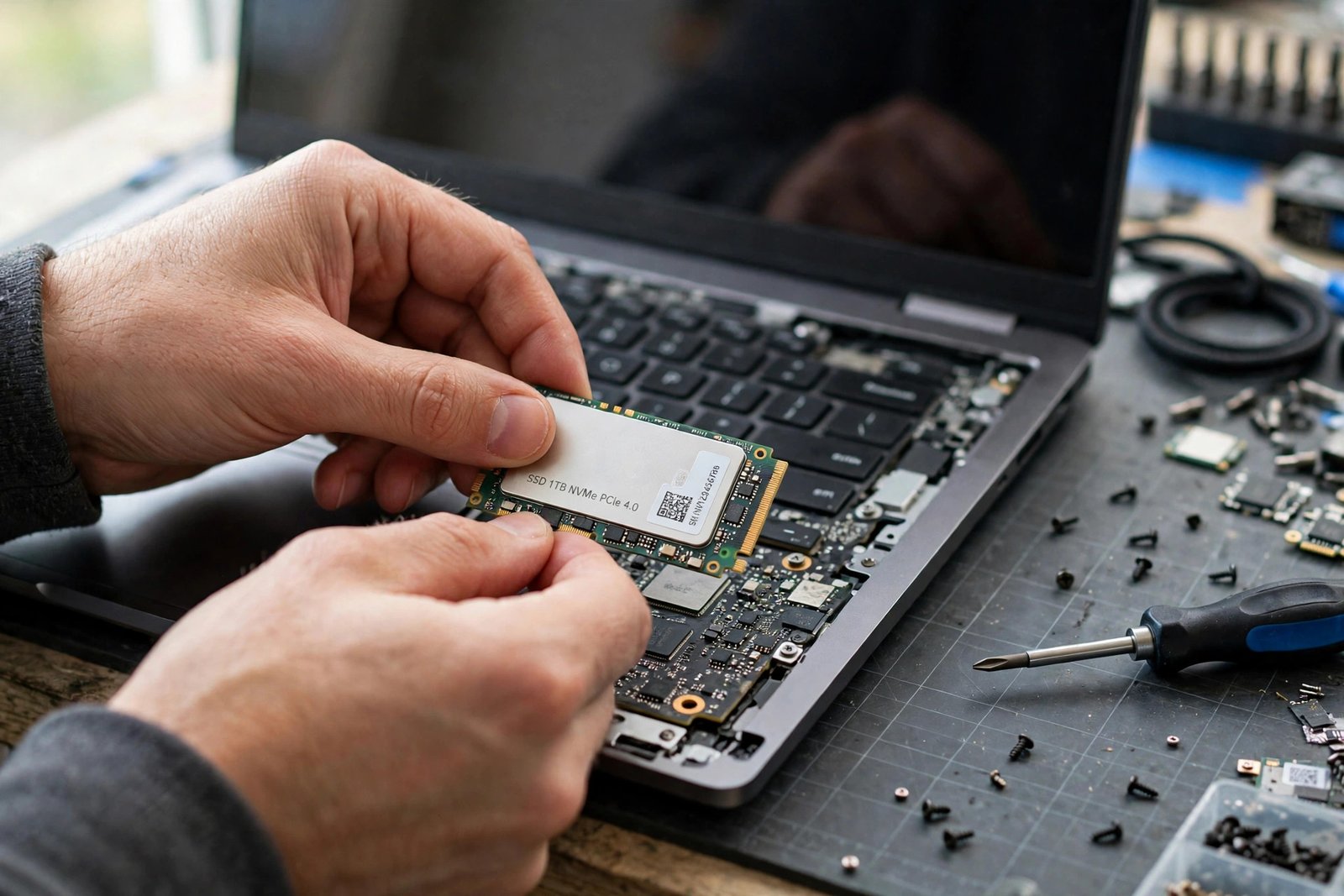
If your laptop still has a spinning hard drive, this is the single biggest upgrade you can make. Solid state drives read and write data far faster than old hard drives, so boot times, app launches, and file searches all get dramatically quicker. It is the upgrade most people notice most.
Check whether your laptop has a spare drive slot or a replaceable drive, then buy an SSD that fits. A 500 GB or 1 TB SATA SSD is enough for most people. Clone your old drive or reinstall Windows fresh, then enjoy the difference. If the laptop is very old or the upgrade costs more than the machine is worth, a new budget laptop may be the smarter buy. Our guide to the best budget laptops under 500 dollars shows what you can get without spending much.
Fix 12: Add More RAM
Memory is the other hardware upgrade that changes how a laptop feels. With too little RAM, Windows starts using the drive as overflow memory, which is far slower. That is the stutter you feel when you switch between apps.
Open Task Manager and check the Memory figure on the Performance tab. If it sits above 80 percent during normal use, more RAM will help. Most laptops sold in the last few years run best with at least 16 GB. Check your laptop manual or the manufacturer site to see if the memory is upgradable, since many thin laptops have it soldered in place. If yours can be upgraded, adding a matching stick is a quick job for most repair shops.
Which Fix Should You Try First?
Work in order and stop when your laptop feels fast enough. The free software fixes solve most slow laptops. Hardware upgrades are for machines that are still slow after a full cleanup. A basic SATA SSD and a RAM stick are usually the cheapest laptop upgrades you can buy, often costing less than a budget laptop.
| Fix | Time needed | Cost | Best for |
|---|---|---|---|
| Restart and update | 15 minutes | Free | Every laptop |
| Turn off startup apps | 5 minutes | Free | Slow boot |
| Free up disk space | 10 minutes | Free | Nearly full drive |
| Turn off visual effects | 5 minutes | Free | Older laptops |
| Scan for malware | 10 minutes | Free | Sudden slowdown |
| Upgrade to an SSD | 1 hour | Low | Old hard drive laptops |
| Add more RAM | 30 minutes | Low | Heavy multitasking |
When Is It Time to Replace Your Laptop?
Sometimes the honest answer is a new laptop. If your machine is more than eight years old, cannot run the latest version of Windows or macOS, has a failing battery and a cracked screen, or costs more to repair than it is worth, replacement beats repair.
If you only need the basics, a new machine does not have to be expensive. Students and home users can find capable laptops at modest prices, and our guide to the best laptops for college students matches machines to different budgets and majors. Keep your old laptop as a spare or recycle it responsibly.
Frequently Asked Questions
How long does it take to speed up a slow laptop?
Most software fixes take less than an hour in total, and you can feel the difference right away. Restarting and turning off startup apps takes about ten minutes. A full cleanup with updates and a malware scan takes closer to an hour. Hardware upgrades take longer, since you need to buy parts and install them.
Will resetting my laptop make it faster?
A factory reset can help if software clutter is the cause, since it removes every app and setting. Back up your files first, because a reset erases everything. Try the fixes in this guide first. A reset is a last resort, not a first step.
Does a slow laptop mean I need a new one?
Not usually. Most slow laptops are slowed by software, a full drive, or a spinning hard drive, and all three are fixable. Only replace your laptop if it cannot run current software, has failing hardware, or would cost more to fix than to replace.
How much RAM do I need in 2026?
For everyday browsing, email, and office work, 8 GB is the minimum and 16 GB is comfortable. If you edit video, run virtual machines, or keep dozens of browser tabs open, 16 GB or more is worth it. Check your memory use in Task Manager before you buy.
Can a slow internet connection make my laptop feel slow?
No, a slow connection only affects web pages, streaming, and downloads. If apps on your laptop also feel slow, the problem is the machine, not the connection. Test your connection speed separately if web pages are the only thing that lags.
The Bottom Line
Your laptop probably does not need replacing. It needs a restart, a cleanup, and a few settings changed. Start with the free fixes in this guide, work through them in order, and only spend money if the software cleanup does not do the job. An SSD and a memory upgrade can give an older laptop years of extra life.
If you work through all 12 fixes and your laptop still crawls, take it to a repair shop for a check. A failing drive or a dying battery can mimic software slowness, and catching it early can save your files.