How to Reset iPhone to Factory Settings (Complete Guide)
How to Reset iPhone to Factory Settings (Easy Guide)

In some cases, your iPhone becomes slow. Apps may crash, and storage can fill quickly. You might also want to sell or give away your device.
A factory reset will help in these situations. This reset deletes all personal data, apps, and settings. Once complete, the iPhone returns to the same state as when it was first used.
Before performing a reset, you should prepare your device. Otherwise, you risk losing valuable files.
In this guide, you will learn:
⦁ When you need to reset your iPhone
⦁ What to do before resetting
⦁ Step-by-step reset process
⦁ How to reset using a computer
What Does it Mean to Reset an iPhone?
A factory reset erases all content on the device, including photos, contacts, apps, and settings. The operating system remains, but all personal data disappears.
People reset iPhones for several reasons:
⦁ The phone is slow or buggy
⦁ They plan to sell the device
⦁ The system has software issues
⦁ Storage problems occur
⦁ They want a fresh start
Things to Do Before Resetting Your iPhone
Back Up Your Data
Create a backup using iCloud or a computer. This ensures you can restore photos, contacts, and apps after the reset.
Sign Out of Apple ID
Sign out to turn off Find My iPhone. This prevents activation locks if you sell the device.
Remove SIM Card
Take out the SIM card if giving the device away. This protects your carrier and phone number.
Charge Your Device
Ensure the iPhone has sufficient battery. Resets usually take a few minutes, and interruptions can cause issues.
How to Reset an iPhone to Factory Settings
Step 1: Open Settings
Unlock your iPhone and open the Settings app.
Step 2: Go to General
Scroll down and tap General to access system preferences.
Step 3: Tap Transfer or Reset iPhone
Scroll to the bottom to see reset options.
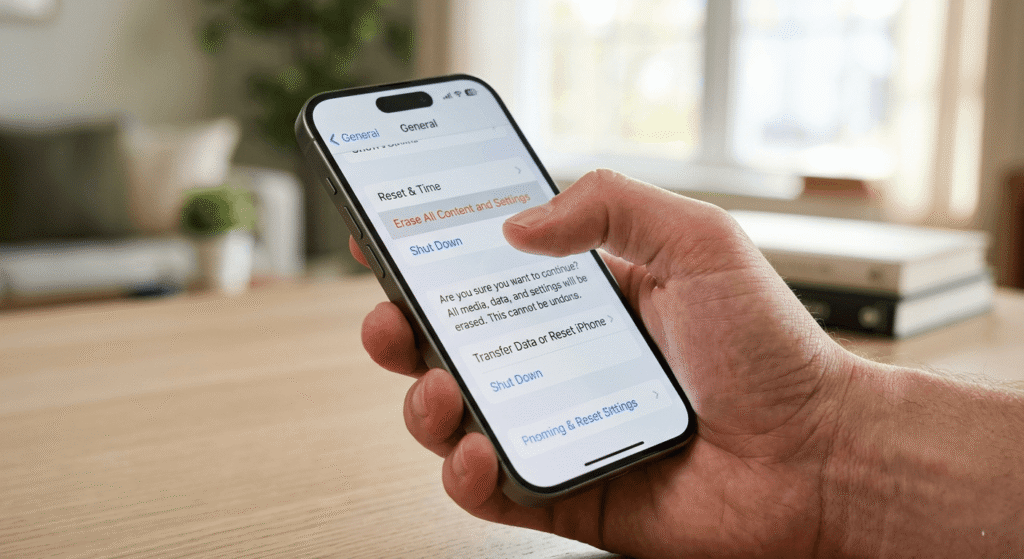
Step 4: Choose Erase All Content and Settings
Select this option to remove all personal data.
Step 5: Enter Your Passcode
Type your iPhone code and Apple ID password if required.
Step 6: Confirm the Reset
Tap Erase iPhone. The device restarts and deletes all data. After a few minutes, it displays the setup screen.
How to Reset an iPhone with a Computer
Sometimes, the Settings app is inaccessible. You can use a computer instead:
Step 1: Connect the iPhone
Use a USB cable to connect to a computer.
Step 2: Open Finder or iTunes
On Mac (Catalina or later) use Finder; on Windows or older Macs, use iTunes.
Step 3: Select Your iPhone
Locate your device in the list of connected devices.
Step 4: Click Restore iPhone
Choose this option to erase all data and install the latest iOS.
Step 5: Confirm the Restore
Check the restore process. The device restarts with a fresh operating system.
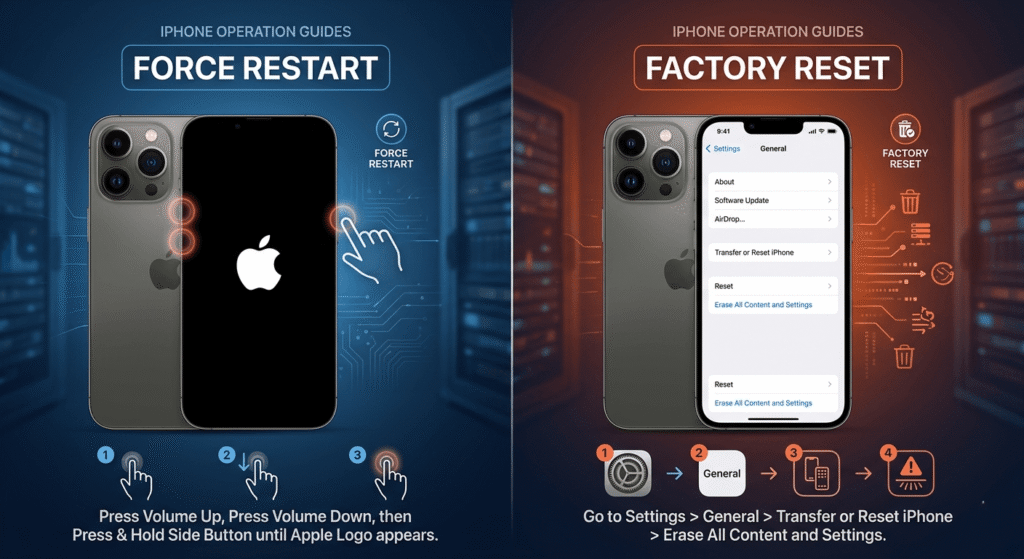
Reset vs. Force Restart
Force Restart
⦁ Restarts the device
⦁ Does not erase data
⦁ Fixes temporary freezes
Factory Reset
⦁ Deletes all data
⦁ Restores original settings
⦁ Solves severe software problems
Use force restart for minor issues. Only perform a factory reset when necessary.
When to Reset Your iPhone
Consider a reset if:
⦁ The phone runs slowly
⦁ Apps crash frequently
⦁ System bugs persist
⦁ Storage problems continue
⦁ You plan to sell the device
Always back up your data first.
Final Thoughts
Restoring an iPhone is simple. Back up your data, sign out of Apple ID, and select Erase All Content and Settings. The process takes only a few minutes and resolves software issues.
A factory reset also secures personal information before selling or giving away your device. With these steps, you can achieve a fresh start quickly and efficiently.