Master Your Smartphone: A Guide to Proper Android Apps Arrangement

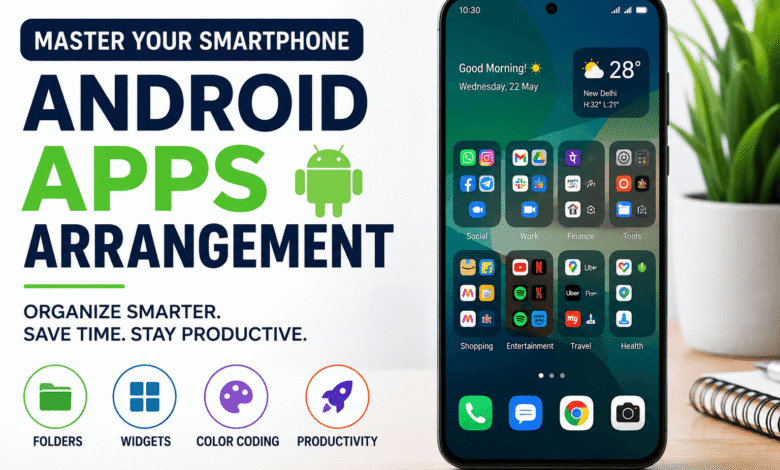
Smartphones have become an essential part of everyday life. Most people unlock their phones dozens of times every day for work, entertainment, communication, and productivity. However, many users overlook one important factor that directly affects their experience, which is proper android apps arrangement.
A cluttered home screen can waste time and create unnecessary stress. Organizing your applications properly can improve productivity, reduce distractions, and make your smartphone easier to use. A thoughtful setup allows you to access important tools quickly while creating a cleaner digital environment.
In this guide Its Tech Club will help you build a practical system that is easy to maintain for the long term.
Why Your Phone Needs a Digital Detox
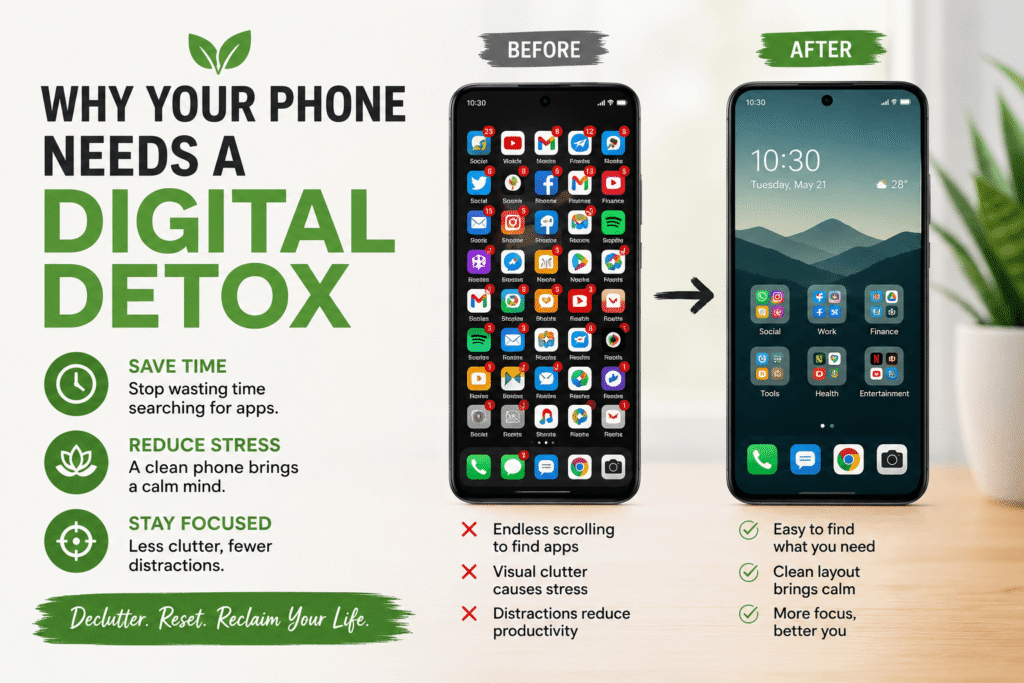
Many people install applications without considering their placement. Over time, this creates multiple pages filled with random icons that become difficult to navigate.
You may find yourself endlessly scrolling just to locate a single application. This habit wastes valuable time every day and can become frustrating.
Research shows that digital clutter can increase cognitive overload and reduce concentration. A messy smartphone screen constantly demands your attention, even when you are trying to focus on something else.
A digital detox begins by removing unnecessary applications and organizing the remaining ones intentionally.
Start by asking yourself a few simple questions:
- Which applications do you use every day?
- Which applications do you use weekly?
- Which applications have not been opened for months?
Delete applications you no longer need. If you are unsure about deleting them, consider disabling them temporarily.
Reducing visual clutter creates a calmer smartphone experience. Your phone should work for you instead of creating additional stress.
Choosing the Right Launcher for Your Needs
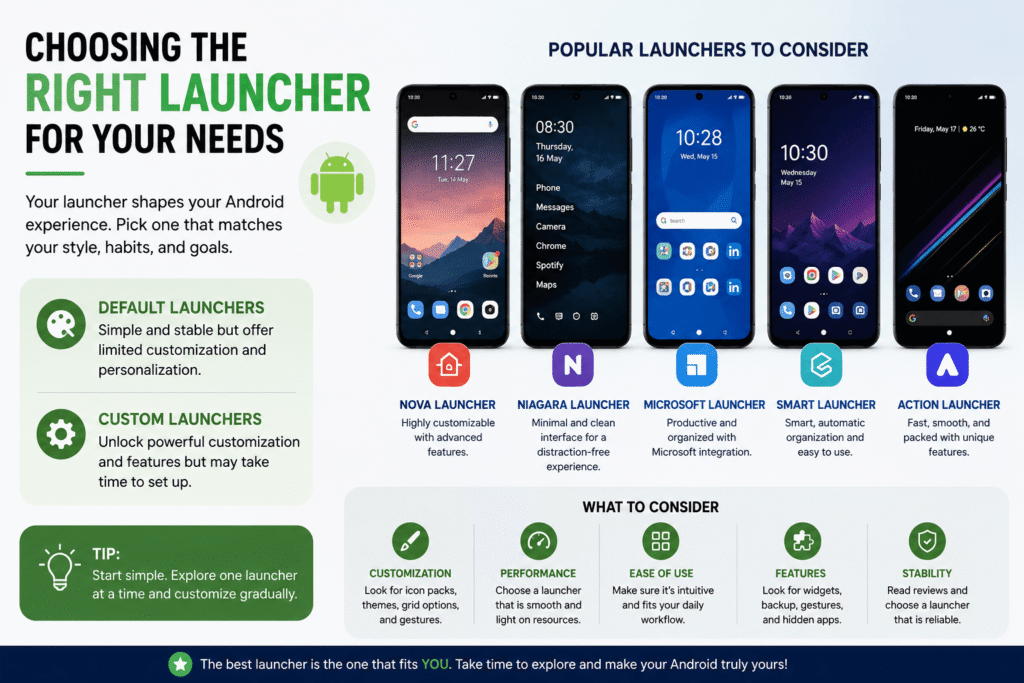
The launcher controls how your Android home screen looks and functions. Many smartphones come with default launchers that offer basic customization options.
However, default launchers may not provide enough flexibility for advanced organization.
Popular third-party launchers include:
- Nova Launcher
- Niagara Launcher
- Microsoft Launcher
- Smart Launcher
- Action Launcher
Each launcher offers unique benefits depending on your preferences.
Some users prefer minimal designs with fewer distractions. Others want extensive customization options and gesture controls.
Custom launchers can initially feel overwhelming because they offer numerous settings. The key is to start with simple changes instead of modifying everything at once.
Focus on these features first:
- Icon size adjustments
- Grid layout customization
- Gesture controls
- Folder appearance
- Widget placement
Experiment with one launcher for a week before deciding whether it suits your daily habits.
An effective android apps arrangement starts with a launcher that complements your lifestyle rather than complicating it.
Creating Folders Based on Daily Routines
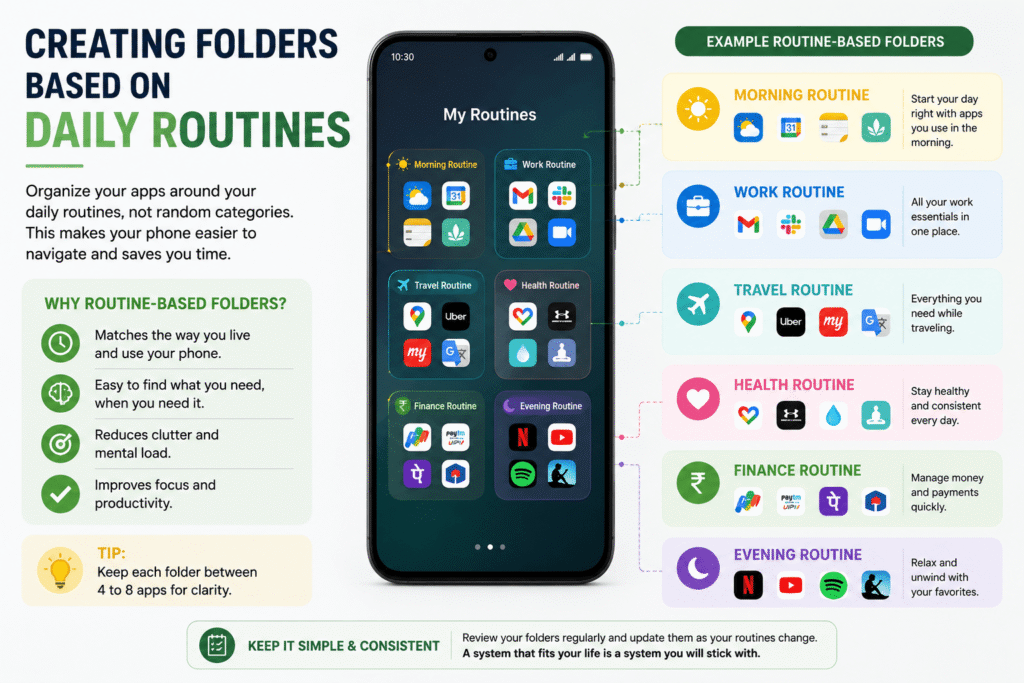
Most people organize applications into generic folders like Social Media, Work, Games, and Shopping. While this system works initially, these folders often become overcrowded.
Instead, organize applications according to your daily routines.
Think about how you use your phone throughout the day.
Examples include:
Morning Routine
- Alarm
- Weather
- Calendar
- Notes
- Meditation apps
Work Routine
- Gmail
- Slack
- Zoom
- Google Drive
- Microsoft Teams
Travel Routine
- Maps
- Uber
- Airline apps
- Translation apps
Evening Routine
- Netflix
- Spotify
- Kindle
- YouTube
Routine-based folders create a natural flow that matches your behavior.
This approach also reduces the common problem of forgetting where an application is stored.
Keep each folder between four and eight applications whenever possible. Too many icons inside one folder defeat the purpose of organization.
Consistency is more important than perfection.
The Power of Color Coding Your Icons
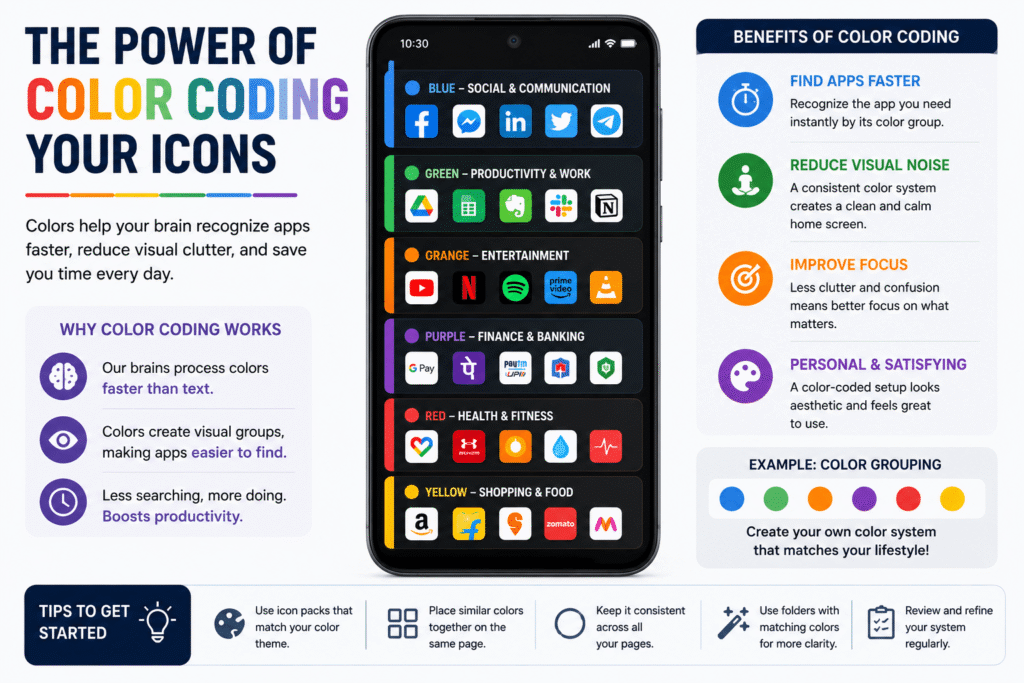
Humans process colors faster than text. This principle can make your smartphone significantly easier to navigate.
Standard application icons often create visual noise because they use different colors and designs.
Color coding helps your brain identify applications almost instantly.
You can achieve this in several ways.
Group applications with similar icon colors together.
For example:
Blue Zone
- PayPal
Green Zone
- Spotify
- Excel
Red Zone
- YouTube
- Netflix
Some launchers also allow icon pack customization. Icon packs create a unified design that reduces visual chaos.
Popular icon styles include:
- Minimal icons
- Monochrome icons
- Gradient icons
- Material design icons
When icons follow a consistent theme, your home screen feels cleaner and more professional.
Instead of reading every label, your brain quickly recognizes familiar color patterns.
This small adjustment can save time throughout the day.
Optimizing the Dock for Comfort
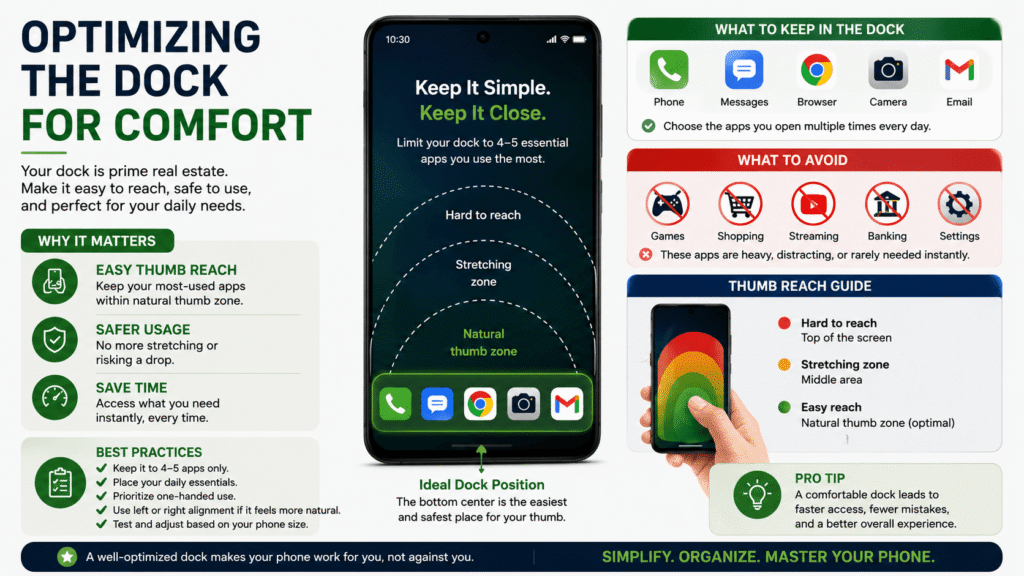
The dock is the row of applications that remains visible across all home screens.
Many people underestimate its importance.
Your dock should contain only your most frequently used applications.
Limit the dock to four or five essential tools.
Examples include:
- Phone
- Messages
- Browser
- Camera
Avoid placing heavy applications that require long interactions.
The goal is to make one-handed usage easier and safer.
Stretching your thumb across large devices can increase the risk of dropping your phone.
Modern smartphones continue getting bigger every year. Therefore, ergonomic placement becomes even more important.
Consider using gesture shortcuts if your launcher supports them.
For example:
- Swipe up for search
- Double tap to lock screen
- Swipe down for notifications
These gestures reduce unnecessary finger movements and improve efficiency.
An effective android apps arrangement always considers physical comfort alongside visual organization.
Using Smart Widgets to Reduce Screen Time
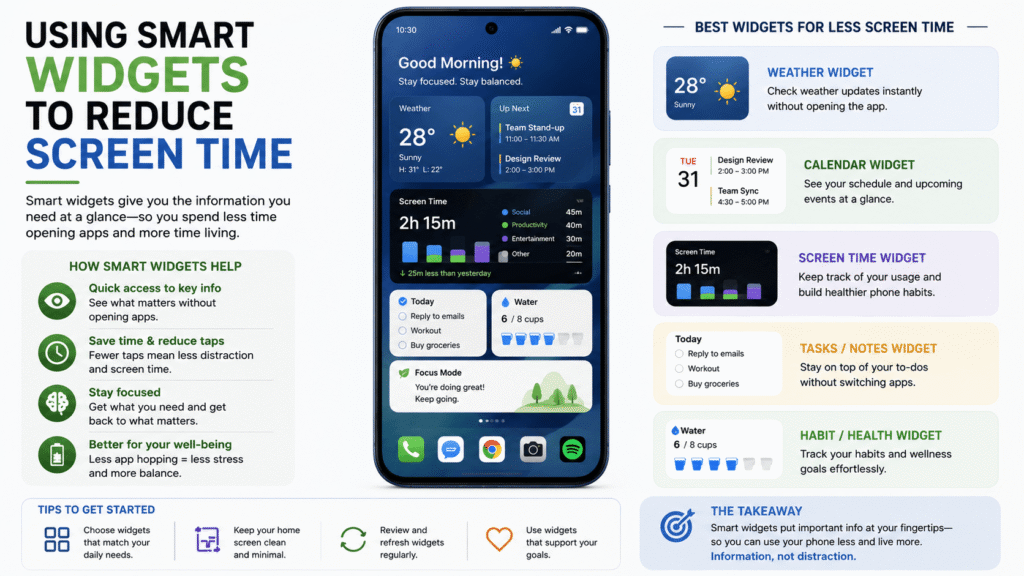
Widgets are one of Android’s most powerful productivity features.
Unfortunately, many users either ignore them or overcrowd their screens.
The purpose of widgets is to provide information without opening applications.
This reduces distractions and saves time.
Useful widgets include:
Calendar Widget
View upcoming appointments without opening your calendar.
Weather Widget
Check weather conditions instantly.
To-Do List Widget
See pending tasks immediately.
Battery Widget
Monitor battery levels without extra steps.
Music Widget
Control audio playback from the home screen.
Widgets help reduce screen time because they eliminate unnecessary interactions.
Many people open an application to check one piece of information and then become distracted by notifications.
For example, opening Instagram for messages may lead to fifteen minutes of random scrolling.
Widgets help break this habit.
Keep widgets simple and avoid adding too many.
Large widgets should occupy only one dedicated screen. Your main home page should remain uncluttered.
The goal is to create a balance between information and simplicity.
Designing an Efficient Home Screen Layout
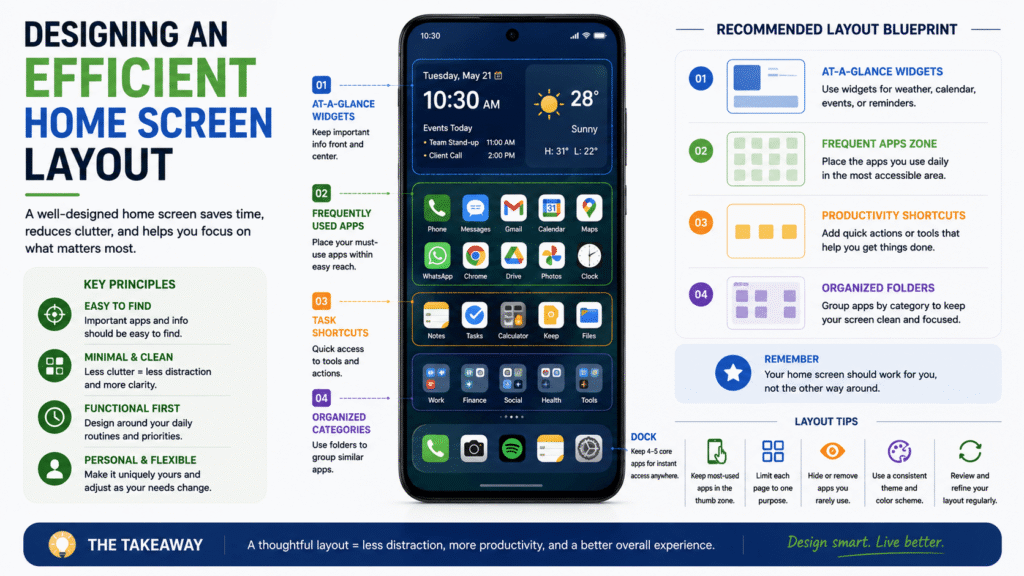
A well-organized home screen should prioritize functionality over appearance.
Many users create beautiful setups that become impractical after a few days.
Start with three simple zones.
Primary Zone
This area contains applications you use multiple times daily.
Examples include:
- Phone
- Browser
- Messages
- Camera
Secondary Zone
This area contains applications used several times each week.
Examples include:
- Banking apps
- Shopping apps
- Productivity tools
Hidden Zone
This area contains applications you rarely access.
Examples include:
- Settings
- File managers
- Utility tools
Keep your first home page minimal.
Avoid adding more than ten applications on the main screen.
Too many icons create decision fatigue and slow down navigation.
You can also dedicate separate pages to specific purposes.
Examples include:
- Work page
- Entertainment page
- Health page
This structure creates a predictable experience every time you unlock your device.
Maintaining Your New System
Creating a system is easy. Maintaining it consistently is the real challenge.
Many users organize their phones once and forget about them entirely.
Within a few weeks, new downloads begin creating clutter again.
Establish simple maintenance rules.
Follow the One-In, One-Out Rule
If you install a new application, remove an old one whenever possible.
Review Applications Monthly
Spend five minutes every month reviewing unused applications.
Turn Off Automatic Home Screen Additions
Many Android devices automatically place new downloads on the home screen.
Disable this feature immediately.
Keep Folder Sizes Small
Move applications around before folders become overcrowded.
Update Your Routine Regularly
Your habits change over time. Your phone organization should adapt accordingly.
Maintaining consistency requires very little effort once a system is established.
The goal is not perfection. The goal is sustainability.
Final Thoughts
A proper android apps arrangement can completely transform your smartphone experience. Organizing applications thoughtfully saves time, reduces stress, and improves daily productivity.
Your smartphone is one of the most frequently used devices in your life. Investing a few minutes into organizing it can produce long-term benefits.
Start with small changes rather than attempting a complete redesign overnight.
Remove unnecessary applications, create routine-based folders, optimize your dock, and use widgets strategically.
Over time, these small improvements will become second nature.
At Its Tech Club, we believe technology should simplify your life rather than complicate it. A well-organized smartphone helps you stay focused and productive while reducing digital distractions.
Remember that the best android apps arrangement system is not the most beautiful one. It is the one that fits naturally into your everyday habits and remains easy to maintain over time.
By following these strategies, your smartphone will become a helpful tool instead of a source of frustration.
You may also like: